Best Local AI Tools for Running Open Models in 2026
Editorial note: This comparison is based on official product documentation, GitHub repositories, and public pricing/licensing pages reviewed on September 23, 2026.
No hands-on performance testing is claimed here — rankings reflect documented capabilities, not measured inference speed or output quality.
Picking a local AI tool isn’t really one decision. It’s three: which engine actually runs the model, which interface you use to talk to it, and whether you need document search, a team login screen, or production-scale serving layered on top.
Most “best local AI tools” roundups skip that distinction entirely. They put Ollama, llama.cpp, and Open WebUI in the same flat list as if they compete for the same job, when in practice two of them stack on top of the third. That confusion is exactly why so many people install the wrong tool, get frustrated, and conclude that local AI is harder than it actually is.
This guide scores eight tools against a consistent, weighted framework, then tells you plainly which layer of the stack each one actually occupies.
If you haven’t read how the underlying mechanics work — quantization, hardware tiers, and what “local” really means — Local AI Explained covers that foundation. This article picks up from there and focuses on the software you’ll actually install.
What this article owns: a weighted comparison of eight local AI tools and which stack layer each one fills, tied to real hardware and cost data. What it doesn’t: which specific model to download, or hands-on performance testing.
Running an open model locally is also a different job from training or customizing one. Every tool below loads and serves existing weights — none of them teach a model new behavior.
If what you actually need is to adapt a model to your own data, that’s a separate skill set from anything covered here. LoRA Explained covers the adaptation method itself, how to prepare a dataset for fine-tuning a language model covers getting your training data ready, and how to prevent overfitting when fine-tuning AI models covers keeping the result usable once you’ve trained it.
The Short Answer
For most people getting started, Ollama is the easiest entry point — a free, open-source command-line tool with a huge model library and broad ecosystem support. If you want a graphical interface with no terminal required, LM Studio or Jan are the strongest picks.
Developers who want direct control over the inference engine itself should look at llama.cpp, which nearly everything else in this list is built on top of.
The Best Local AI Tools at a Glance
| Tool | Best fit | Main strength | Main limitation |
|---|---|---|---|
| llama.cpp | Developers who want direct engine control | Maximum hardware compatibility and configuration depth | No GUI; command-line and API only |
| Ollama | Easiest all-around entry point | Huge model library, broad ecosystem integration | No built-in chat interface |
| LM Studio | Beginners who want a visual app | Polished GUI over MLX and llama.cpp | Closed-source; less ecosystem depth than Ollama |
| Open WebUI | Teams wanting a shared chat interface | Broad feature set: RAG, voice, enterprise controls | Not an inference engine — needs a backend |
| AnythingLLM | Private document/knowledge assistants | Strong RAG and multi-user self-hosting | Core job is RAG, not raw model running |
| Jan | Privacy-first desktop chat | Clean, minimal open-source app | Smaller ecosystem; memory feature still unreleased |
| GPT4All | Offline document chat for power users | Built-in LocalDocs RAG | Positioned for technical users despite consumer framing |
| vLLM | Production-scale serving | PagedAttention, continuous batching, multi-GPU | Not built for personal desktop use at all |
What “Local AI Tool” Actually Means: Engine, Interface, and Serving Layer
Every tool in this comparison fills one of three roles, and conflating them is the single biggest source of confusion in this space. An engine is the software that actually loads model weights and runs inference — llama.cpp is the clearest example. An interface sits on top of an engine and gives you a way to talk to it, whether that’s a chat window or a developer API.
Ollama occupies a middle position: it wraps llama.cpp’s engine and adds a simpler CLI, a model library, and an API layer, without being a full graphical interface itself. Open WebUI and AnythingLLM sit a layer above that — they’re interfaces that connect to a running engine like Ollama, rather than running models themselves.
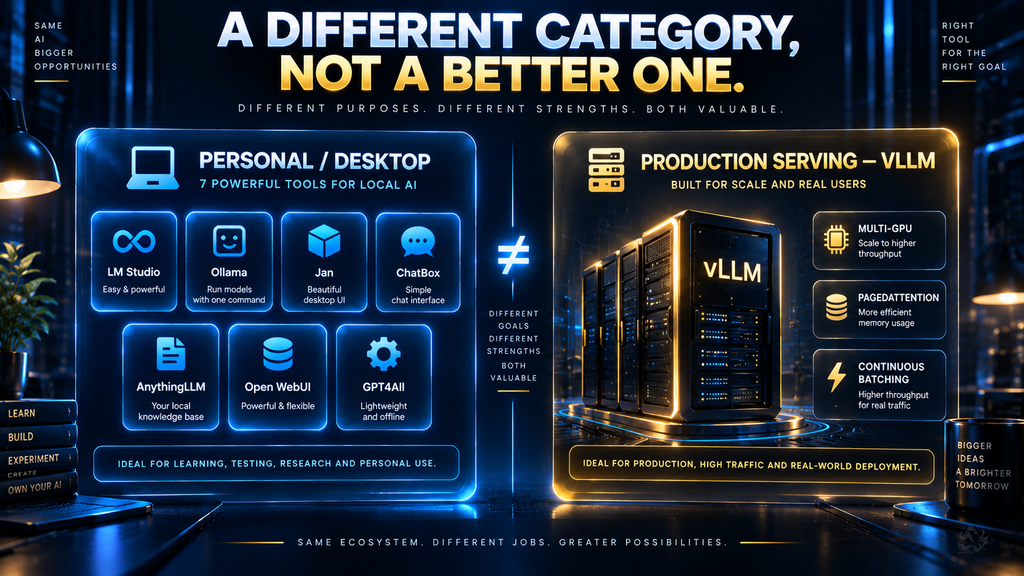
vLLM is a different category altogether. It’s a serving layer built for production traffic, not a personal desktop tool, and comparing it directly to Ollama is a bit like comparing a home router to a data center switch. Understanding which layer you actually need is most of the battle — the rest of this guide scores each tool within that context.
How We Researched and Scored These Tools
Every feature, pricing detail, and licensing term cited in this article comes from each project’s own documentation, official site, or public GitHub repository, reviewed on September 23, 2026. Vendor language like “easiest,” “most powerful,” or “best-in-class” was not treated as evidence — only specific, checkable claims were.
We did not conduct hands-on performance testing for this comparison. Rather than describe untested behavior as observed, this article scores tools on documented capability, exactly as disclosed above.
The AI Hustle World Decision-Fit Score
The AI Hustle World Decision-Fit Score is our reusable research model for commercial software comparisons, first applied in our AI content repurposing tools review. It measures how convincingly a tool’s documented capabilities fit its intended job — not how impressive its marketing copy sounds.
Each dimension is rated zero to five based on the evidence found in official documentation. A zero means we found no supporting evidence; a five means the capability is extensively and clearly documented.
| Dimension | Weight | What it measures |
|---|---|---|
| Core-job fit | 30% | How completely the tool handles running or serving open models locally |
| Workflow coverage | 20% | How many adjacent stages (chat, RAG, dev API, team access) it covers natively |
| Human control | 15% | Configuration depth, model parameter access, and editorial/engineering control |
| Integration and portability | 15% | Ecosystem compatibility, API standards, and what else it connects to |
| Pricing predictability | 10% | Whether costs, licensing terms, and tiers are clear and stable |
| Evidence transparency | 10% | How clearly official documentation supports the claims made |
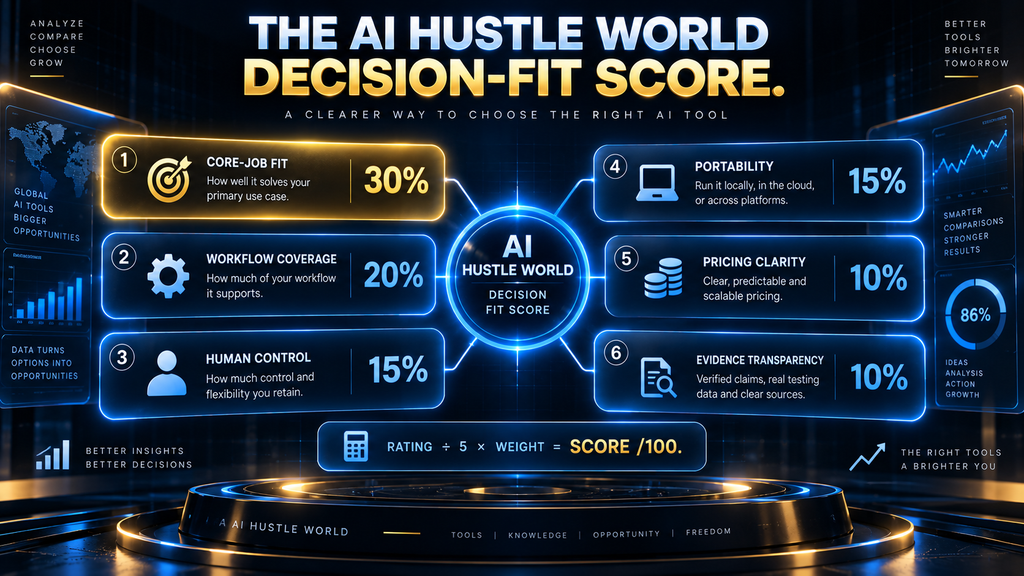
Formula: Decision-Fit Score = sum of each rating ÷ 5 × its assigned weight, giving each tool a total out of 100.
| Tool | Core-job fit | Coverage | Human control | Portability | Pricing clarity | Evidence | Total |
|---|---|---|---|---|---|---|---|
| llama.cpp | 30 | 8 | 15 | 15 | 10 | 10 | 88 |
| Ollama | 30 | 12 | 9 | 15 | 10 | 8 | 84 |
| LM Studio | 30 | 16 | 12 | 9 | 8 | 6 | 81 |
| Open WebUI | 18 | 20 | 15 | 12 | 6 | 8 | 79 |
| AnythingLLM | 18 | 20 | 12 | 12 | 8 | 8 | 78 |
| Jan | 24 | 12 | 9 | 9 | 10 | 8 | 72 |
| GPT4All | 24 | 12 | 9 | 9 | 10 | 6 | 70 |
| vLLM | 12 | 12 | 12 | 12 | 10 | 10 | 68 |
llama.cpp leads this particular model because the score rewards maximal core-job fit, control, and portability — exactly what a foundational engine should have. That doesn’t mean it’s the right pick for a beginner; a perfect engine score is worthless to someone who just wants a chat window.
Ollama and LM Studio follow closely because they combine strong core-job fit with real ecosystem depth or polish. vLLM scores lowest here specifically because this model measures fit for personal local AI use — for its actual job, production serving, vLLM would score very differently.
The score should narrow your shortlist, not replace the use-case breakdown later in this article. A tool with a lower total can still be the correct purchase for a narrower job.
The AI Hustle World Local AI Tool Coverage Matrix
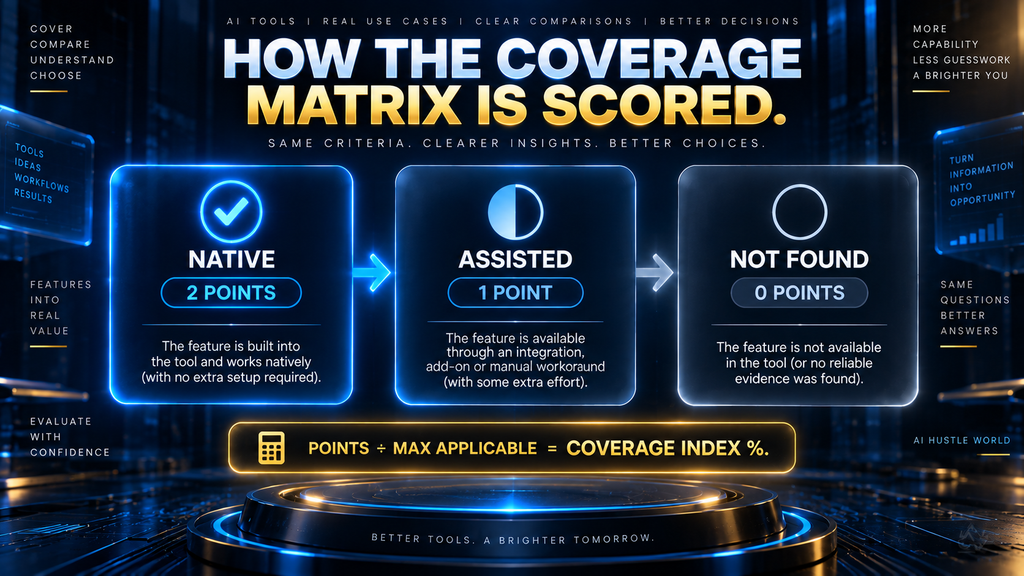
This second matrix measures a different question: how many adjacent capabilities does each tool document natively, beyond its core job? Each capability is coded Native (2 points), Assisted (1 point), or Not found (0 points) in the reviewed documentation, then divided by the maximum applicable points.
Methodology: capabilities were coded from official documentation and GitHub repositories reviewed September 23, 2026. “Not found” means the reviewed material did not establish the capability — it does not prove the capability is impossible.
| Tool | Inference engine | Chat GUI | Developer API | Document/RAG | Multi-user/team | Production serving |
|---|---|---|---|---|---|---|
| Open WebUI | — | N | N | N | N | A |
| LM Studio | N | N | N | A | N | — |
| AnythingLLM | A | N | A | N | N | A |
| GPT4All | N | N | A | N | — | — |
| vLLM | N | — | N | — | — | N |
| Ollama | N | — | N | — | — | A |
| Jan | N | N | A | — | — | — |
| llama.cpp | N | — | N | — | — | A |
| Tool | Coverage points | Coverage Index |
|---|---|---|
| Open WebUI | 9/12 | 75% |
| LM Studio | 9/12 | 75% |
| AnythingLLM | 9/12 | 75% |
| GPT4All | 7/12 | 58% |
| vLLM | 6/12 | 50% |
| Ollama | 5/12 | 42% |
| Jan | 5/12 | 42% |
| llama.cpp | 5/12 | 42% |
A low coverage score here is not a quality verdict. llama.cpp, Ollama, and Jan score lowest because they’re deliberately lean — a raw engine and a minimal client aren’t supposed to also be a RAG system and a team-management console.
1. llama.cpp: Best for Maximum Engine Control
llama.cpp is the C/C++ inference engine that much of this list is quietly built on top of. It’s MIT-licensed, has no external dependencies, and supports quantization from 1.5-bit through 8-bit precision — the exact mechanism covered in our Quantization Explained guide.
Its hardware backend support is the widest of any tool here: Metal for Apple Silicon, CUDA for NVIDIA, HIP for AMD, plus Vulkan, SYCL, and specialized support for NPUs. You interact with it through a CLI, a library API for embedding in your own code, or an OpenAI-compatible server (llama-server) for programmatic access.
Who it’s best for: developers who want to understand and control exactly what’s happening during inference. Who should choose something else: anyone who wants a chat window without touching a terminal — llama.cpp has no GUI or built-in document chat, since those are jobs for the tools built on top of it.
Pricing perspective: completely free under the MIT license, with no tiers or commercial restrictions. Verdict: llama.cpp earns the top Decision-Fit Score for raw capability and control, but most readers of this article will actually want Ollama or LM Studio instead.
Getting started means building from source or grabbing a release binary, then running the CLI against a GGUF model file — there’s no installer wizard, in keeping with its developer-first design.
2. Ollama: Best All-Around Entry Point
Ollama wraps llama.cpp’s engine in a simpler CLI, model library, and OpenAI-compatible API — the setup path covered in Local AI Explained. Per Ollama’s own materials, it’s used by millions of developers and integrates with coding agents like Claude Code and VS Code.
The core tool is free and runs entirely on your machine; Ollama separately offers a paid Cloud tier — currently $20/month with $60 of included usage credit — for larger hosted models when your own hardware isn’t enough. That’s a distinct product from the free local tool, worth not confusing when comparing pricing.
Who it’s best for: developers and technically comfortable users who want the easiest path from “install” to “running a model.” Who should choose something else: non-technical users who want a visual app from the first click — LM Studio or Jan remove the command line entirely.
Pricing perspective: the local tool is free and open, full stop, with the Cloud tier as a separate, clearly priced add-on. Verdict: Ollama is the strongest all-around starting point for most readers — its ecosystem depth is hard to match at this level of simplicity.
Getting started takes one install command and one ollama run <model> command to have a model responding in the terminal — the fastest path to a working setup in this entire comparison.
3. LM Studio: Best Polished GUI for Beginners
LM Studio is a closed-source desktop application built on a dual backend of MLX and llama.cpp, giving it native performance on both Apple Silicon and other hardware. It ships a model browser, a chat interface, and developer tooling including a JavaScript SDK, a Python library, and a CLI.
As of a recent licensing change, LM Studio is now free for both personal and business/commercial use, removing an earlier requirement to request a separate commercial license. An Enterprise tier adds SSO and model-access gating for larger organizations, though full enterprise pricing isn’t public.
Who it’s best for: beginners, researchers, and anyone who wants a visual, no-terminal experience. Who should choose something else: developers who specifically want an open-source engine they can audit — LM Studio’s app itself is proprietary, even though the engines underneath it are open.
Pricing perspective: free for personal and commercial use under the current policy; Enterprise features require contacting the company directly. Verdict: LM Studio is the strongest GUI-first option here, pairing real engine performance with a genuinely beginner-friendly interface.
Getting started means downloading the desktop app, then browsing and downloading a model directly from the built-in model browser — no command line involved at any step.
4. Open WebUI: Best Shared Interface for Teams
Open WebUI is not an inference engine — it’s a self-hosted interface that connects to Ollama, OpenAI, Anthropic, or any OpenAI-compatible backend. It documents voice and vision support, built-in retrieval-augmented generation, Python extensibility for custom pipelines, and a single-command deployment via pip or Docker.
Its enterprise feature set is genuinely deep: single sign-on, role-based access control, audit logging, and air-gapped deployment options. It uses a custom BSD-style license with a branding-protection clause, though that clause doesn’t apply to deployments under 50 users within any 30-day window.
Who it’s best for: teams that want a shared, ChatGPT-style interface over a self-hosted model, especially when SSO or audit logging matters. Who should choose something else: solo users who just want a lightweight chat window — Open WebUI’s breadth is overhead when you’re the only person using it.
Pricing perspective: free and unrestricted for deployments under 50 users per month; larger deployments should review the branding clause. Verdict: Open WebUI is the strongest team-facing interface here, provided you pair it with a real inference engine like Ollama underneath.
Getting started requires a running backend first, typically Ollama, then a single pip install or Docker command to bring up the web interface pointed at that backend.
5. AnythingLLM: Best for Private Document and Knowledge Assistants
AnythingLLM’s core job is different from most of this list: it’s a retrieval-augmented private assistant, not primarily a model-running engine. It’s MIT-licensed, documents web scraping, custom agent skills, and a meeting assistant with on-device transcription that never sends audio anywhere.
It’s available as a desktop app, Docker deployment, or self-hosted multi-user server, and per its own site is used internally by companies including Merck, Oracle, NVIDIA, and Samsung. It sits in a similar category to Best RAG Platforms and Tools, but scoped to fully local, private deployments.
Who it’s best for: anyone whose actual goal is “chat with my own documents privately,” rather than general-purpose model running. Who should choose something else: if you just want general chat or coding help, AnythingLLM adds RAG overhead you don’t need — Ollama or LM Studio is more direct.
Pricing perspective: the desktop app is free; a cloud offering exists but its terms aren’t fully detailed publicly. Verdict: AnythingLLM is the clearest specialist choice when private document search, not raw model access, is the actual job to be done.
Getting started with the desktop app is a straightforward download and install; the self-hosted multi-user version needs Docker and considerably more setup for authentication and storage.
6. Jan: Best Minimalist Privacy-First Desktop App
Jan is a free, open-source desktop chat application — 44,600+ GitHub stars and 6.7 million downloads at review time — built around a self-hosted backend component called Tokamak, with a distributed “Jan Agent” that can run on user-owned infrastructure. It supports both local open models and connections to hosted providers like Claude, ChatGPT, and Gemini from the same interface.
Its documented limitations are notable: a persistent memory feature is still listed as “coming soon,” and its minimalist design trades some configuration depth for simplicity. It currently ships primarily for Mac, with broader platform support evolving.
Who it’s best for: privacy-conscious users who want a clean, distraction-free desktop chat app without Ollama’s command-line step. Who should choose something else: anyone needing persistent conversation memory today, or broad non-Mac support right now — both are still catching up.
Pricing perspective: completely free and open source, with no paid tier documented. Verdict: Jan is a strong, honestly-scoped choice for privacy-first desktop chat, though its ecosystem is still smaller than Ollama’s or LM Studio’s.
Getting started is a simple download and install, with model selection handled inside the app itself — closer to installing a normal desktop application than a developer tool.
7. GPT4All: Best Built-In Document Chat for Power Users
GPT4All, from Nomic AI, is open source and cross-platform across Windows, macOS, and Linux. Its standout feature is LocalDocs, a built-in retrieval system for chatting with your own files without leaving the app — a genuine convenience most competitors require a separate tool for.
Despite marketing language emphasizing privacy for everyone, GPT4All’s own documentation specifically describes its target audience as “developers, teams, and AI power-users,” which is worth knowing before recommending it to a non-technical relative expecting a one-click consumer app.
Who it’s best for: technical users who want built-in document chat without assembling a separate RAG stack. Who should choose something else: true beginners expecting the friendliest first experience — despite the privacy-forward marketing, the real audience here is more technical than Jan or LM Studio.
Pricing perspective: free and open source for the core app; Nomic separately offers a business-focused platform with its own terms. Verdict: GPT4All earns its place through LocalDocs, a genuinely useful feature, but it fits technical users better than its “no cloud required” framing suggests.
Getting started means downloading the app, picking a model from its in-app list, and pointing LocalDocs at a folder if you want document chat working from day one.
8. vLLM: Best for Production-Scale Serving
vLLM doesn’t belong in a beginner’s shortlist, and its own documentation makes that clear — it’s an Apache-2.0-licensed serving engine built around PagedAttention and continuous batching, designed for high-throughput, multi-GPU, distributed deployment via Kubernetes and Docker. It’s maintained by a broad coalition of over 2,000 contributors that originated at UC Berkeley’s Sky Computing Lab.
It supports quantization, speculative decoding, LoRA adapters — covered in our Fine-Tuning AI Models Explained guide — and an OpenAI-compatible API, but none of that changes its fundamental audience: engineering teams serving models to many concurrent users, not individuals running a model on their own machine.
Who it’s best for: engineering teams deploying open models behind an API for real production traffic at scale. Who should choose something else: almost everyone else — if you’re running a model for yourself or a small team, Ollama or LM Studio gets you there with far less setup complexity.
Pricing perspective: free and open source under Apache-2.0, though the GPU infrastructure required to run it meaningfully is the real cost. Verdict: vLLM answers a different question than most local AI users are asking — excellent at production serving, and intentionally not built for anything else.
Getting started assumes GPU drivers, Python, and container tooling are already in place — this isn’t a weekend project for a non-technical user, and its own documentation doesn’t pretend otherwise.
Which Tool Fits Your Use Case
| Your situation | Best fit | Why |
|---|---|---|
| Complete beginner, want a GUI | LM Studio or Jan | No terminal required, polished chat experience |
| Developer who wants full control | llama.cpp | Direct engine access, maximum hardware backend support |
| Developer who wants simplicity + ecosystem | Ollama | Easiest CLI path, broad coding-agent integration |
| Team needs a shared chat interface | Open WebUI + Ollama | Enterprise controls layered over a real engine |
| Need to chat with your own documents | AnythingLLM or GPT4All | Both ship built-in RAG; AnythingLLM adds team hosting |
| Serving a model to many concurrent users | vLLM | Purpose-built for production throughput |
Which Tool Fits Your Hardware
Every tool here depends on the same hardware math from the AHW Local AI Cost & Throughput Model: your VRAM or unified memory determines realistic model sizes, regardless of wrapper. The tool you pick doesn’t change that ceiling — it only changes how much friction you feel working within it.
RTX 4090 / RTX 5090 (High-VRAM NVIDIA)
With 24GB or more of VRAM, you have real headroom for mid-sized quantized models, and the choice between tools comes down to workflow rather than capability. Ollama’s CUDA support is mature and well-documented, making it the default pick for developers; LM Studio delivers the same underlying performance with a model browser if you’d rather not track GGUF files manually.
If you’re planning to layer Open WebUI or AnythingLLM on top for team access or document search, this hardware tier has enough spare capacity to run the interface layer and the engine on the same machine without a noticeable slowdown.
Apple Silicon (M-Series Unified Memory)
Apple Silicon’s unified memory architecture changes the calculus: LM Studio’s native MLX backend is built specifically to take advantage of it, often edging out llama.cpp’s Metal backend on Apple hardware for the same quantized model. Ollama also runs well here through its own Metal support, so the practical difference is closer to interface preference than raw capability.
Jan, being Mac-focused in its current release, is a particularly natural fit on Apple Silicon if a clean, minimal desktop app matters more to you than maximum model-library breadth.
AMD GPUs and CPU-Only Hardware
llama.cpp’s HIP backend gives AMD GPU owners a first-class path some higher-level tools support less consistently — worth checking against your exact card and driver version first. On CPU-only machines, its direct BLAS acceleration and hybrid CPU+GPU offload give it a real edge over tools that quietly assume a GPU is available.
GPT4All and Jan both run acceptably on CPU-only hardware for smaller quantized models, but expect noticeably slower generation than any GPU-backed setup — a tradeoff worth weighing against buying hardware at all if you’re only running small models occasionally.
Multi-GPU and Production-Scale Hardware
For genuinely production-scale hardware — multi-GPU servers — vLLM is the only tool here actually built to use that hardware efficiently, through tensor and pipeline parallelism. Ollama or LM Studio across multiple GPUs technically works, but neither splits a single model’s load the way vLLM does.
Which Tools Work Best as a Coding Assistant Backend
A growing reason people install a local AI tool at all is to power a coding assistant without sending code to a cloud API — a use case we covered in depth in Local AI Explained. Not every tool in this comparison is equally suited to that job.
Ollama is the clearest winner here, with documented native integrations for Claude Code, Codex, and VS Code extensions, meaning a developer can point an existing coding workflow at a local model with minimal reconfiguration. llama.cpp’s OpenAI-compatible server can technically fill the same role, but you’ll be wiring up the connection yourself rather than using a supported integration.
LM Studio’s developer SDKs make it a reasonable second choice for teams already standardized on its GUI, though its coding-assistant integrations are less widely documented than Ollama’s. Open WebUI, AnythingLLM, Jan, and GPT4All are not built around this use case at all — they’re general chat or document tools, and forcing a coding workflow through them adds friction without adding capability.
A Security Detail Worth Checking Before You Self-Host
Running a model locally doesn’t automatically make it private if the interface sitting on top of it is reachable by more than just you. Open WebUI and AnythingLLM both support multi-user, network-accessible deployments — genuinely useful for teams, but only as secure as the authentication and network configuration you put around them.
Open WebUI documents SSO and role-based access control because it’s designed to be exposed to a team network, not just localhost. Deploy it without configuring those controls, and a “private” setup can become reachable by anyone on the network — the same failure mode Local AI Explained covers for Ollama’s default API port.
Ollama and llama.cpp’s own API servers default to localhost-only access, which is safer out of the box, but that safety disappears the moment you deliberately bind them to a network interface for remote access without adding your own authentication layer in front.

How Much Setup Effort Does Each Tool Actually Require
| Tool | Initial setup | Ongoing maintenance |
|---|---|---|
| Ollama | Low — single install, one command to pull a model | Low |
| LM Studio | Low — download, install, browse models in-app | Low |
| Jan | Low — download and install | Low |
| llama.cpp | Medium to high — build from source or grab a release, configure flags | Medium |
| Open WebUI | Medium — requires a running backend engine first | Medium |
| AnythingLLM | Medium — desktop is simple; self-hosted multi-user is not | Medium to high |
| GPT4All | Low — download, install, point LocalDocs at your files | Low |
| vLLM | High — GPU drivers, container orchestration, distributed config | High |
How to Measure Whether Your Local Setup Is Actually Working
Most people judge a local AI setup by whether a response eventually appears, not by whether it’s actually working well. Four numbers tell you more: tokens per second during generation, time to first token, how much VRAM or unified memory sits unused at idle, and your total monthly spend compared to what a cloud subscription would have cost for the same volume of use.
Tokens per second is the throughput number most benchmarks report, and it matters most for long outputs like code generation or writing. Time to first token matters more for chat, since a slow first word feels sluggish even when the rest streams quickly. Both move with quantization level and context length, not just hardware, so compare like for like.
VRAM or unified-memory headroom shows whether you’re using your hardware or fighting it — a model that barely fits runs slower than one with room to spare, regardless of tool. The monthly cost comparison actually settles whether it was worth it: track electricity and replaced API spend against your sunk hardware cost using the AHW Local AI Cost & Throughput Model.
The Hidden Costs Behind “Free” Local AI Tools
Every tool in this comparison is free or has a free tier, but “free software” and “free to run” are different claims. The real cost is hardware: electricity, GPU depreciation, and disk space for model files, all of which we calculated in detail in Local AI Explained.
Licensing terms deserve a second look too. Open WebUI’s branding clause only kicks in past 50 users in 30 days, which matters if you’re scaling a self-hosted deployment inside a growing team. LM Studio’s commercial terms changed recently enough that older articles online may describe outdated licensing requirements.
Model storage adds up faster than people expect. A handful of quantized models in the 4 to 8-bit range, as explained in Quantization Explained, can easily consume 50 to 100GB of disk space once you’re experimenting with more than one or two options.
The tool you choose doesn’t change the electricity math from our AHW Local AI Cost & Throughput Model — Ollama, LM Studio, and llama.cpp draw roughly the same power for the same model and hardware. What changes is convenience cost: a GUI tool makes it easier to leave a large model loaded between sessions, quietly drawing idle power.
Why Cloud AI Is Still the Default (And What Staying There Costs You)
None of this makes cloud AI subscriptions obsolete, and it’s worth being honest about why they remain the default for most people. A hosted model needs no hardware, no setup, and no maintenance — open a browser tab and it works, which is a genuine advantage over every tool in this comparison, all of which require at least some setup effort as documented above.
Staying on a cloud subscription indefinitely has its own quiet cost, separate from the monthly price. Every query leaves your device under a data-retention policy that could change tomorrow, usage caps apply even on paid tiers, and a workflow’s model can be deprecated or repriced without much notice — as several vendors already have done.
For occasional, low-volume use, doing nothing and staying on a cloud plan is a perfectly reasonable choice — the tools in this article solve a problem that only exists once usage, privacy requirements, or offline needs cross a real threshold. The hidden-cost math above is what tells you whether that threshold has been crossed, not a blanket rule that local is always better.
Two Real-World Setups, Worked Through
A solo developer on a laptop with an RTX 4090. The bottleneck isn’t hardware — 24GB of VRAM handles most quantized models comfortably. The real question is workflow: this developer already uses VS Code and wants a local model as a coding backend without changing habits.
Ollama is the clear answer here, not because it’s more powerful than llama.cpp, but because the documented VS Code and Claude Code integrations mean zero custom wiring. Installing Open WebUI on top would add a chat interface this developer doesn’t need, since their actual interface is already the code editor.
A 12-person marketing team wanting a shared, private research assistant. Here the bottleneck is entirely different: nobody on the team wants to touch a terminal, and the real requirement is document search across internal files, with some access control since not everyone should see every folder.
This is squarely AnythingLLM’s job, not Ollama’s alone — its self-hosted multi-user server and document-knowledge features exist for exactly this case. A team lead would still need Ollama or another engine running underneath it, but the team itself only ever touches AnythingLLM’s interface.
These two scenarios use almost none of the same tools, despite both being “local AI” in the broadest sense — which is the whole reason a single-tool recommendation for “best local AI tool” was never going to be useful advice.
Specialist Stack or All-in-One?
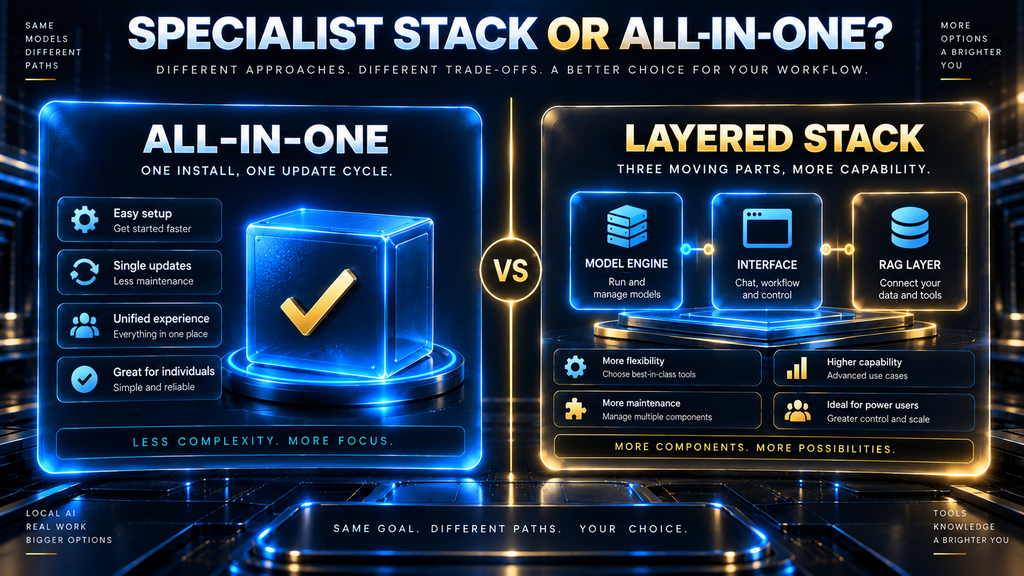
A single-tool approach — just Ollama, or just LM Studio — minimizes complexity and is the right call for most individuals. You get one install, one update cycle, and one thing to learn.
A layered stack makes sense once your needs genuinely split: llama.cpp or Ollama as the engine, Open WebUI as the shared interface, and AnythingLLM as a separate RAG layer for document-heavy work. That’s three moving parts instead of one, which only pays off when a single tool can’t cover what you actually need.
The costliest mistake is choosing breadth before you’ve identified your actual bottleneck. If you just want to chat with a model, installing vLLM’s production infrastructure is enormous overkill; if you’re serving thousands of users, Ollama alone will eventually become the bottleneck.
How to Choose the Right Local AI Tool
1. Decide which layer you actually need. Are you looking for an engine, a chat interface, a document assistant, or production serving? Most people conflate these and end up installing the wrong thing first.
2. Match your hardware honestly. A CPU-only laptop and a multi-GPU workstation point toward very different tools, independent of which interface you prefer.
3. Separate “easy to install” from “easy to live with.” Ollama and LM Studio are both easy to install; only you know whether you’ll actually use a terminal daily.
4. Check the licensing fine print if you’re a team. Open WebUI’s user-count threshold and LM Studio’s commercial terms are both worth a five-minute read before you standardize on one across an organization.
Common Mistakes When Choosing a Local AI Tool
Assuming Ollama and llama.cpp compete. They don’t — one wraps the other. Comparing them as equals misunderstands the relationship covered earlier in this guide.
Installing a full interface stack before confirming your hardware can run the model you want. Open WebUI or AnythingLLM add real value, but they can’t fix a model that’s too large for your VRAM.
Treating vLLM as “the powerful option.” It’s powerful at a job most readers don’t have — serving many concurrent users — not at everyday personal chat.
Ignoring disk space until it’s a problem. Quantized models are smaller than full precision, but a growing collection still adds up quickly, as covered in our quantization guide.
Where This Toolset Is Headed
The clearest trend across all eight tools is consolidation around the same two standards: GGUF as the model file format and an OpenAI-compatible API as the default way to talk to a running model. That convergence is why switching between Ollama, LM Studio, and llama.cpp’s own server is easier today than it was even a year ago.
Expect the interface layer to keep absorbing more of the RAG and agent functionality that used to require a separate tool. Open WebUI and AnythingLLM already blur that line, and it’s a reasonable bet that Ollama or LM Studio adds native document chat before long, narrowing the gap between “engine,” “interface,” and “assistant” even further.
The production side is moving in the opposite direction: toward more specialization, not less. As open models get better, more teams will hit the point where vLLM’s production serving genuinely matters, rather than treating it as an unnecessary step up from a desktop tool.
The Second-Order Effects of Switching to Local AI
Choosing any tool in this comparison quietly makes you responsible for jobs a cloud subscription used to handle invisibly: driver updates, disk cleanup as model files accumulate, and diagnosing why a model suddenly runs slower after a system update. That’s a real, ongoing time cost worth weighing against the money saved, not just a one-time setup tax.
Once a model is downloaded, trying a different one costs disk space and a few minutes, not a new subscription decision. That changes how people actually use these tools over time — testing several quantization levels of the same model, or swapping architectures entirely, becomes routine in a way it never is when every experiment runs through a metered API.
The GPU or unified-memory machine bought for this becomes a long-lived constraint on every future tool decision, not just today’s. A 24GB card that comfortably runs today’s mid-sized quantized models may feel undersized against next year’s default model weights, which is the real argument for buying toward the upper end of a budget rather than the minimum that runs today’s models acceptably.
Final Thoughts
This article’s job was narrow on purpose: score eight local AI tools honestly, and tell you which stack layer each one actually fills. It doesn’t tell you which specific model to run — that’s a separate decision covered by hardware capacity, not tool choice — and it doesn’t claim hands-on performance testing.
What it does give you is a clear map: llama.cpp and Ollama for the engine layer, LM Studio and Jan for beginner-friendly desktop chat, Open WebUI and AnythingLLM for team or document-focused interfaces, and vLLM for production scale. Pick based on the layer you actually need, not the tool with the loudest marketing.
Running a Model Is One Thing. Training Your Own Is Another.
fine-tuning guide →Frequently Asked Questions
Is Ollama better than llama.cpp? They’re not really competitors — Ollama wraps llama.cpp’s engine in a simpler CLI and model library. Choose llama.cpp only if you want direct engine control.
Which local AI tool is best for complete beginners? LM Studio or Jan, since both offer a graphical interface with no command line required to get a model running.
Can I run these tools without a GPU? Yes. llama.cpp, Ollama, LM Studio, Jan, and GPT4All all support CPU-only inference, though smaller quantized models perform best without a GPU.
Is LM Studio open source? No. LM Studio is closed-source and free for personal and commercial use, while the engines it runs on (llama.cpp and MLX) are open source.
What’s the difference between Open WebUI and Ollama? Ollama runs the model; Open WebUI is a separate interface that connects to Ollama (or another backend) to give you a chat window and team features.
Do I need AnythingLLM if I already use Ollama? Only if you specifically want to chat with your own documents. AnythingLLM adds a RAG layer on top of a model backend rather than replacing one.
Is vLLM meant for personal use? No. vLLM is built for production-scale serving with multi-GPU deployments, not for running a model on your own laptop.
How much disk space do local AI tools need? It depends entirely on how many models you keep installed — a single quantized model can range from a few hundred MB to tens of gigabytes, detailed further in our quantization guide.
Does Jan support cloud models too? Yes. Jan can connect to hosted providers like Claude, ChatGPT, and Gemini from the same interface used for local models.
Which tool has the widest hardware support? llama.cpp, with documented backends spanning NVIDIA CUDA, Apple Metal, AMD HIP, Vulkan, SYCL, and several specialized accelerators.
Is GPT4All really for beginners? Its marketing emphasizes simplicity, but GPT4All’s own documentation describes its target audience as developers, teams, and power-users — worth knowing before recommending it to a non-technical user.
Can I switch between these tools later without losing my models? Often yes, since many tools use the same GGUF model format under the hood, though model libraries and storage locations differ by tool.
Written by
Muntasir Ahmad Chowdhury
Founder-AI Hustle World
Muntasir Ahmad Chowdhury is the Founder of AI Hustle World, an independent publication dedicated to making Artificial Intelligence practical, trustworthy, and easy to understand. He researches AI tools, automation, customer service, productivity, and real-world business applications, helping readers make smarter technology decisions through research-driven, experience-backed content.
Expertise:
AI Tools • AI Automation • AI Customer Service • AI Productivity • Generative AI • AI Workflows
Get Smarter With AI
Enjoyed this guide? Get practical AI tools, tutorials, and honest reviews delivered to your inbox.
3 thoughts on “Best Local AI Tools for Running Open Models in 2026”