Evidence: Documentation reviewed
Last checked: August 2026
What was done: Written from official documentation and the published sources linked in this article. Not hands-on tested.
Files: None
Affiliate links: Yes
Last Updated: August 2026
7 Best AI Video Tools for a Phone-Only Faceless YouTube Channel in 2026
Affiliate disclosure: This article contains affiliate links. If you purchase a product through one of our links, AI Hustle World may earn a commission at no additional cost to you. Our recommendations are based on the tool’s capabilities, limitations, mobile workflow, value, and suitability for the job—not on the commission we may receive.
If your entire YouTube studio is a phone, the usual “best AI video tools” lists are not very useful. A desktop creator can tolerate a tool that generates beautiful clips but requires another application for editing. Someone working entirely from a phone cannot. Every extra export, download, app switch, timeline edit, and desktop-only feature becomes part of the production problem. That changes what “best” means.
For a phone-only faceless YouTube channel, the winning tool is not necessarily the one that produces the most impressive individual AI clip. It is the tool—or combination of tools—that lets you move from idea → script → voice → visuals → editing → export with the least friction while still leaving enough room for human judgment.
After comparing the current mobile capabilities of the major tools, the strongest options for this workflow are InVideo AI, Fliki, ElevenLabs, Google Veo, CapCut, Canva, and VEED. But they do not solve the same problem, and you should not subscribe to all seven. The bigger lesson is this: build a small production system, not a collection of AI subscriptions.
Quick Answer: What Are the Best AI Video Tools for a Phone-Only Faceless YouTube Channel?
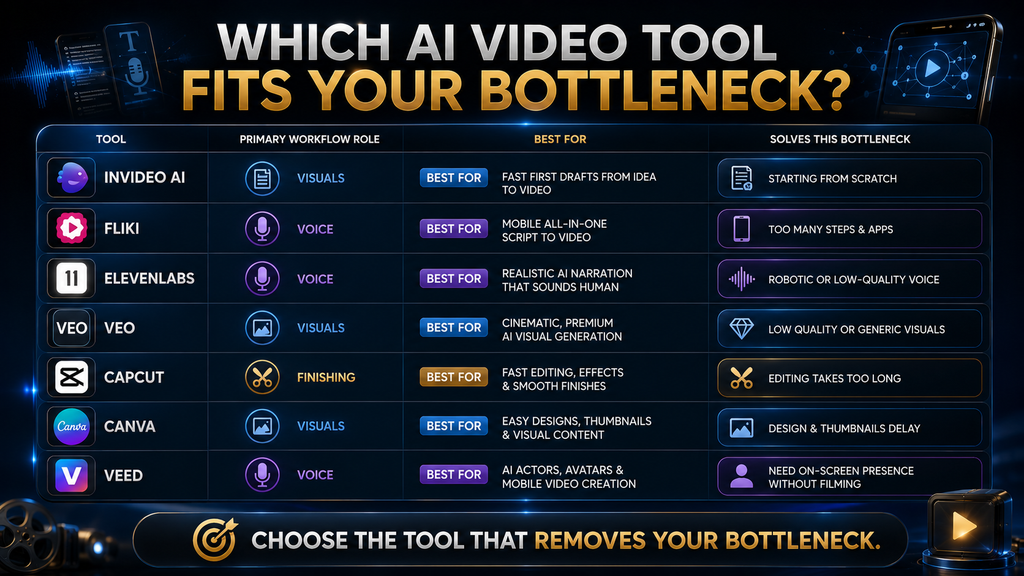
InVideo AI is the strongest choice when you want AI to turn a detailed brief into a substantial first video draft. Fliki is particularly strong when you want a browser-based, mobile-responsive workflow that combines script, voice, visuals, captions, and editing. ElevenLabs is the specialist choice when narration quality is the bottleneck. Google Veo is best used selectively for premium AI-generated shots rather than an entire YouTube episode. CapCut is the strongest finishing layer for captions, pacing, trimming, and mobile editing. Canva is the easiest starting point for beginners who want one familiar mobile environment. VEED is worth considering for creators who want AI actors and mobile-first creation, although its dedicated app is currently iOS-first while Android access is still being developed. The best stack depends on what is actually slowing you down.
| Tool | Primary role | Best for | Phone-only fit | Main weakness |
|---|---|---|---|---|
| InVideo AI | AI video production | Fast first drafts from a prompt or script | Strong | Credit usage can rise quickly with generative models |
| Fliki | Script-to-video | Mobile-first all-in-one production | Excellent | Less specialized than using separate best-in-class tools |
| ElevenLabs | Voice | Natural narration and voice production | Excellent | A separate tool if you only need basic narration |
| Google Veo | AI visuals | Premium hero shots and cinematic clips | Strong for its role | Not a complete YouTube editing workflow |
| CapCut | Finishing | Captions, pacing, trims and final edits | Excellent | Advanced AI features can require Pro/credits |
| Canva | Beginner production | Simple videos, graphics and light publishing | Excellent | Less efficient for high-volume video production |
| VEED | AI video + editing | AI actors and mobile creation | Good, with platform caveat | Dedicated app currently emphasizes iOS |
Pricing and feature availability change frequently, particularly for credit-based AI video tools, so treat subscription prices as current reference points rather than permanent promises. CapCut, for example, says pricing varies by region, platform, taxes and promotions.
Test the Narration Layer First
Generate one paragraph of your script in ElevenLabs and compare it with the built-in voice in your video tool before you decide where narration belongs in your stack.
Test ElevenLabs Narration →Affiliate disclosure: We may earn a commission if you subscribe through this link, at no additional cost to you.
What “Phone-Only” Actually Means
This is the distinction most tool roundups miss. A service having a mobile website does not automatically make it a phone-only production tool. There are really three levels of mobile capability.
Level 1: Mobile Accessible. You can open the service on your phone and perform some tasks. That is useful, but it does not mean you can produce a finished YouTube video there. Level 2: Mobile Productive. You can perform meaningful production work from the phone, such as generating a script, creating scenes, recording or generating narration, or making edits. This is considerably more useful.
Level 3: Mobile Complete
You can go from creation to editing and final export without needing a computer. That is the standard that matters most for a genuine phone-only channel. This distinction changes the recommendations.
Pictory is a good example. Its current mobile experience lets you start a project, interact with its AI assistant, review a script and generate a preview from a phone browser. But Pictory explicitly says detailed editing and the final watermark-free download happen on desktop. So although Pictory is a legitimate AI video platform, I would not put it in the core seven for a strict phone-only workflow. That is an important correction from older versions of this type of list.
How We Chose These Seven
The selection is based on the actual production problem rather than a generic feature count. The criteria are:
- Mobile capability: Can meaningful work actually happen from a phone?
- Workflow coverage: How much of the production chain does the tool handle?
- Output control: Can you correct the result rather than simply accepting whatever the AI produces?
- Speed: Does the tool reduce production time or merely move the work somewhere else?
- Learning curve: Can a beginner realistically use it?
- Cost efficiency: Does it make sense before the channel has proven itself?
- Role clarity: Does the tool solve a specific bottleneck well enough to justify being part of the stack?
That last criterion matters most. You do not need seven tools. You need the smallest combination that removes your current bottleneck.
1. InVideo AI — Best for Turning a Brief Into a First Video
Best for: Creators who want the AI to handle a large portion of the initial video-production process. Primary role: Visual production and first-draft generation. InVideo AI is one of the strongest choices when the problem is not “I need a better editor” but: “I have the idea and script, but I don’t want to manually build the first version of the video.”
Its current AI workflow can be managed from a phone. InVideo says its mobile app allows creators to interact with its AI production agent, review generated takes, request regenerations, approve shots, and direct the agent through natural-language instructions. Generation itself runs server-side rather than on the phone. That architecture is important. Your phone does not have to render the AI video. It becomes the control surface. You can describe the video, review what the system creates, reject weak shots, request changes, and continue the production process without carrying a laptop around.
Where InVideo AI fits best
Suppose you are creating a six-minute faceless explainer. Instead of manually collecting dozens of clips, arranging them on a timeline, generating narration, and figuring out scene transitions from scratch, you can give InVideo a structured brief and use the generated version as your starting point. That does not mean the first output should automatically become the final upload. It shouldn’t. Think of the AI-generated version as a rough production draft.
Your job is to inspect:
- the opening hook;
- factual claims;
- scene relevance;
- pacing;
- narration;
- visual repetition;
- awkward transitions;
- unnecessary footage;
- captions;
- ending.
The tool is valuable because it moves you much closer to a finished timeline.
Current credit economics matter
InVideo now uses a credit-based system across its AI workflows and models. Its current plans include access to many image, video, audio and music models, while generation costs depend on the model, resolution, duration and other settings. That creates an important trade-off. A cheap subscription does not necessarily mean unlimited cheap production. For example, InVideo’s own documentation currently lists substantially different costs for Basic, Pro and Ultra generation quality, with generative options becoming much more credit-intensive.
So don’t judge InVideo by the monthly subscription price alone. Judge it by: How many finished videos can your monthly credits realistically produce?
Best use. Use InVideo when you want:
- rapid first drafts;
- stock-media-driven videos;
- AI-assisted scene generation;
- a large amount of production handled for you;
- phone-based control of the generation process.
Skip it if. You already enjoy editing manually and only need:
- better narration;
- captions;
- basic trimming;
- occasional AI-generated clips.
In that case, you are paying for more automation than you need.
AI Hustle World verdict. Excellent production engine, but watch the credits. The biggest mistake would be treating every generated clip as disposable. Write a stronger brief first, review before regenerating, and spend expensive generation credits only where they improve the final video.
2. Fliki — Best Mobile-First All-in-One Workflow
Best for: Creators who want to create and edit substantial parts of a faceless video from a phone without assembling a complicated multi-app system. Primary role: Script-to-video production. Fliki is particularly interesting for this article because its mobile experience changed significantly in 2026. In July 2026, Fliki announced a rebuilt editor with a responsive interface designed to work directly on mobile. The update includes dedicated panels for media, subtitles, audio, scripts and voiceovers, plus a timeline and scene-based editing workflow.
That directly addresses the phone-only problem. A tool can have AI generation and still be frustrating on a small screen. Fliki’s redesign is specifically relevant because the editing environment itself is responsive.
Why Fliki makes sense for faceless channels
A faceless channel often follows a predictable pattern: Script → narration → supporting visuals → captions → music → export. Fliki can cover a large part of that chain inside one environment. That makes it attractive for creators who do not want to maintain separate applications for every stage. Its current product also supports script-driven video creation and multiple voice options, while the rebuilt editor gives the creator more control over scenes, captions and media.
The advantage is not just convenience
Reducing app switching sounds like a small improvement. It isn’t. Consider what happens when your workflow requires:
- script in one app;
- narration in another;
- audio downloaded to your phone;
- visuals generated somewhere else;
- clips imported into an editor;
- captions generated;
- music added;
- final export.
Every transition creates friction. You have to download files, find files, rename files, wait for uploads, switch applications and keep track of versions. A mobile-first all-in-one environment reduces those handoffs. That is why Fliki can be more useful for a phone-only creator than a technically more powerful desktop-oriented tool.
Where Fliki is weaker
The trade-off is specialization. A dedicated voice platform can give you more control over voice production. A dedicated video-generation model can produce more advanced cinematic shots. A dedicated editor can offer deeper timeline control. Fliki’s advantage is the whole workflow, not necessarily winning every individual component.
AI Hustle World verdict. One of the strongest choices for a genuine phone-first workflow. If your priority is: “I want to produce complete videos without constantly jumping between apps,” Fliki deserves serious consideration.
3. ElevenLabs — Best for Natural AI Narration
Best for: Channels where narration quality is important enough to justify a dedicated voice tool. Primary role: Voice production. A faceless video has an unusual problem. Because the viewer cannot see the creator, the voice becomes part of the channel identity. That makes narration much more important than many beginners realize. A mediocre visual can sometimes survive if the information is excellent. A bad voice is much harder to ignore.
ElevenLabs is particularly useful here because its current mobile app is available on both iOS and Android and supports voice creation directly from mobile. The company says the app can create voiceovers, use its voice models including v3, export audio clips, and integrate those files into tools such as CapCut. Current public pricing includes a free plan, Starter at $6/month, Creator at $22/month, and Pro at $99/month, although introductory offers and other conditions can change. You can check the current plans on the ElevenLabs pricing page, and our ElevenLabs review covers the limits in more detail.
Why use a dedicated voice tool?
Because voice quality is one of the easiest places to make an AI-generated channel sound generic. You want to control: For a wider comparison of voice platforms, see ElevenLabs vs alternatives.
- voice identity;
- pacing;
- emotional intensity;
- pronunciation;
- pauses;
- emphasis;
- consistency between videos.
A script-to-video platform may already provide narration. That’s convenient. But if narration becomes one of your channel’s defining characteristics, separating the voice layer gives you more control.
The important economic question
Do not subscribe to ElevenLabs simply because it is popular. If you have not even published your first ten videos, basic narration may be enough. The better sequence is: Validate the channel → identify narration as a bottleneck → upgrade the voice layer. That prevents you from spending money on quality improvements the audience has not yet demonstrated it wants. ElevenLabs uses a shared credit system across its products, so your available usage depends on how those credits are consumed.
AI Hustle World verdict. Best specialist upgrade when narration becomes the bottleneck. For a serious faceless channel, I would rather see you use a simple video stack with excellent narration than a complicated AI stack with a robotic voice.
4. Google Veo — Best for Premium AI-Generated Shots
Best for: Creators who want a few distinctive visuals rather than an entire video generated from scratch. Primary role: Premium visual generation. This is where you should resist the temptation to use AI simply because you can. Veo is powerful, but that does not mean you should generate every second of a YouTube video with it.
Google’s current Veo 3.1 supports text-to-video, image-to-video and video generation with native audio, while offering features such as reference images, camera controls, first/last-frame transitions and object insertion. Google also describes Veo 3.1 as available through Gemini and other Google products. Veo 3.1 also supports vertical video, which is useful if your content strategy includes Shorts.
So why not generate the whole video?
Because the economics and workflow do not always justify it. For a typical faceless explainer, much of the screen time can be handled by:
- relevant stock footage;
- screenshots;
- diagrams;
- charts;
- screen recordings;
- generated stills;
- simple motion graphics.
You do not need a premium generative-video model for every sentence. Instead, use Veo where visual quality has disproportionate value. For example:
- Opening hook: A dramatic scene that immediately establishes the topic.
- Concept visualization: Something difficult to represent with stock footage.
- Transition: A distinctive visual bridge between two sections.
- Thumbnail concept: A visually strong frame that can become part of your packaging.
This is the same principle as using a premium camera lens for the shots where it actually matters.
The better Veo strategy
Use: 80–90% efficient production assets + a small number of premium AI-generated shots. The exact percentage will vary by channel, but the principle is stable. Do not spend premium generation credits solving problems that stock footage, graphics or screenshots can solve adequately. AI Hustle World verdict. Excellent visual specialist. Use Veo to make important moments better—not to make the entire production unnecessarily expensive.
5. CapCut — Best Mobile Finishing Layer
Best for: Taking generated assets and turning them into an actual YouTube video. Primary role: Editing and finishing. This is the tool that prevents the “AI generated a video, so I’m done” mistake. You are not done. The final pass is where you correct:
- pacing;
- captions;
- dead space;
- unnecessary clips;
- awkward transitions;
- music volume;
- voice timing;
- visual repetition;
- opening seconds;
- ending;
- aspect ratio;
- export settings.
CapCut remains particularly useful because its mobile workflow is built around quick editing. Its current subscription structure has changed, however. CapCut says Pro pricing varies by region, device and promotions, and it now has different membership structures including Standard and upgraded Pro options. Its Pro tier can include advanced editing tools, higher-resolution export, cloud storage and AI features, while AI credits are separate from the subscription itself. If you need heavier audio cleanup, see the best AI audio editors.
Why CapCut matters even if your AI generator is good
Imagine your AI generator creates this: “A 60-second video with good visuals and narration.” Now watch it. The first sentence takes eight seconds to arrive. One visual stays on screen too long. The narration has a pause that feels unnatural. The captions are oversized. The music is too loud. A scene repeats. The final sentence ends abruptly. None of those problems necessarily require a better AI generator. They require editing. That is why CapCut belongs in the core workflow.
AI Hustle World verdict. Keep CapCut as the finishing layer even if another tool generates the bulk of your video. Your generator creates the raw material. CapCut turns it into a piece of content.
Add a Dedicated Voice When Narration Is the Bottleneck
If narration is the weakest part of your finished video, test a dedicated voice against your tool’s built-in one using the same script.
Compare a Dedicated Voice →Affiliate disclosure: We may earn a commission if you subscribe through this link, at no additional cost to you.
6. Canva — Best Beginner On-Ramp
Best for: Beginners who want to learn basic video production without immediately managing several specialized tools. Primary role: Beginner production, design and lightweight editing. Canva is sometimes underestimated in AI video discussions because it is not exclusively an AI video generator. That misses the point. For a beginner, having one familiar mobile environment for video, graphics, text, thumbnails, stock assets, simple animation, audio and AI features can be more valuable than having the technically strongest generator. Canva’s current mobile video editor works on both iOS and Android and supports trimming, splitting, resizing, stock media, captions, templates and AI-powered video features. Canva also says its mobile workflow can create videos from prompts and refine them directly in the app. That makes it much more than a simple template tool.
Where Canva wins. The biggest advantage is familiarity. If you have never edited a video before, opening a sophisticated AI production platform can create a different problem: You spend more time learning the platform than learning YouTube. Canva gives you a lower-friction starting point. You can learn:
- how long a scene should stay on screen;
- how captions should look;
- how audio and visuals interact;
- how thumbnails work;
- how to build consistent branding.
Those skills remain useful even after you eventually move to a more specialized production stack.
Where Canva loses. Scale. If you are producing one or two videos per week, Canva may be perfectly adequate. If you want to produce a high volume of long-form videos, manually assembling every scene can become the bottleneck. That is when an AI script-to-video tool starts making more sense.
AI Hustle World verdict. Start here if you are completely new. Do not confuse beginner-friendly with permanently sufficient. Use Canva to learn the production fundamentals, then upgrade only when a real bottleneck appears.
7. VEED — Best for Mobile AI Actors and Fast AI Creation
Best for: Creators who want AI actors, automated editing features and an increasingly mobile-first AI production workflow. Primary role: AI-assisted creation and editing. VEED is an interesting inclusion because it approaches the phone-only problem differently. Its current mobile product is designed to create videos from scratch using AI, including script generation, AI actors, captions, B-roll, audio cleanup and editing. For faceless channels, the AI actor capability can be useful when you want a recognizable presenter without appearing yourself.
You can create:
- tutorial presenters;
- explainer hosts;
- product walkthroughs;
- educational videos;
- presenter-led social videos.
VEED’s mobile AI workflow can generate a script, create an AI actor video and let you edit the result on the phone.
But there is an important limitation
The dedicated VEED mobile app is currently available on iOS, while VEED says its Android version is still in development. The browser-based VEED experience remains available, so Android users are not completely excluded, but the native app experience is currently iOS-first. That means I would not call VEED the universal winner for every phone-only creator. It is more accurately: Best for iPhone-first creators who want AI actors and integrated mobile editing.
AI actors are not automatically better
There is another strategic issue. A faceless channel does not necessarily need an AI presenter. If your niche is documentary, finance, history, technology, commentary or list videos a presenter may add little value. If your content is tutorials, software demonstrations, education or product explanations an AI presenter may make the structure easier to follow.
AI Hustle World verdict
A strong specialist option, especially for presenter-led faceless content, but platform availability should influence your decision.
Why Pictory Is Not in the Final Seven
This deserves its own section because Pictory was included in the earlier version of this article. The reason for removing it is not that Pictory is a bad product. It is that the article has a stricter promise: phone-only production. Pictory’s current mobile workflow is useful. You can use the browser-based mobile experience to start a video, interact with its AI assistant, answer questions, review the script and generate a preview.
But the company explicitly says that detailed editing and the final watermark-free export are handled on desktop. That creates a hard boundary: Pictory is mobile-assisted, not fully phone-only. If you have access to a laptop occasionally, Pictory becomes much more interesting. If your rule is: “I own a phone. I do not want to depend on a computer.” then it should not be one of your primary seven. This is exactly why tool selection has to follow the reader’s workflow rather than the product’s popularity.
The Three-Role Framework for a Phone-Only Channel
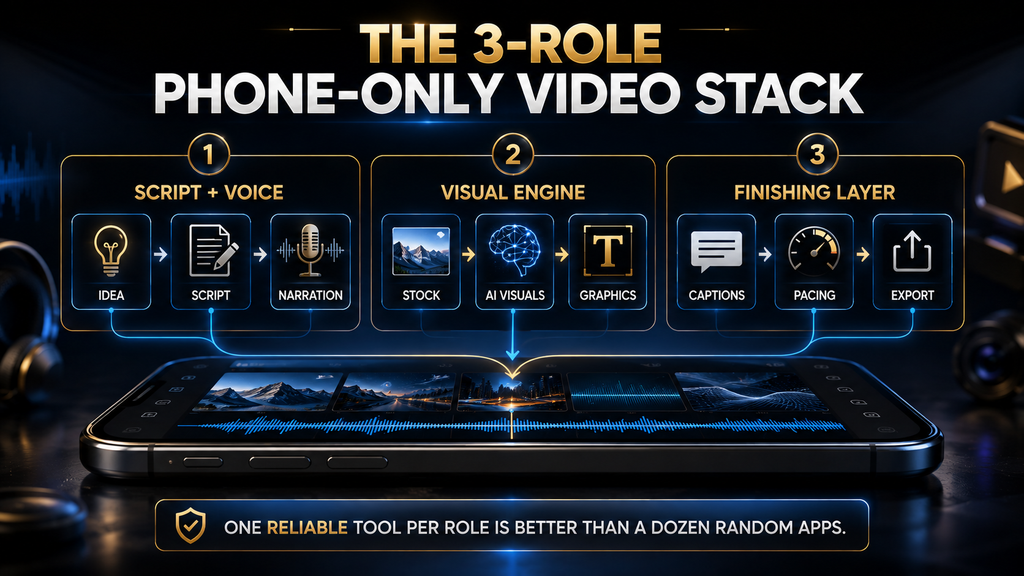
The seven tools make more sense when you stop looking at them as seven competitors. They actually fill different parts of one production system.
Role 1: Script and Voice. This is where the content becomes understandable. You need:
- a strong idea;
- a useful outline;
- a properly edited script;
- narration with good pacing;
- consistent pronunciation;
- a voice that fits the channel.
Potential tools:
- Fliki
- ElevenLabs
- InVideo AI
Role 2: Visual Engine. This is where the narration becomes something viewers can watch. You can use:
- stock footage;
- screenshots;
- AI-generated scenes;
- graphics;
- diagrams;
- AI actors;
- editorial illustrations.
Potential tools:
- InVideo AI
- Fliki
- Google Veo
- VEED
- Canva
Role 3: Finishing Layer. This is where you turn a generated draft into a publishable video. You need:
- captions;
- trims;
- pacing;
- music;
- sound balancing;
- visual corrections;
- export.
Potential tools:
- CapCut
- Canva
- VEED
The key lesson is simple: You do not need one tool to win every category. You need one reliable tool for each stage that actually matters to your channel.
Choose the Visual Format Before Choosing the Tool. This is one of the most important decisions in the entire workflow. The same AI video tool can be excellent for one channel and almost useless for another because the visual format is different. Stock-Footage-Driven. The narration carries the information while stock footage provides visual movement. This is usually the easiest format for beginners. It works particularly well for:
- news-style explainers;
- list videos;
- commentary;
- educational content;
- business topics.
The advantage is speed. The weakness is sameness. Many creators have access to similar footage libraries, so two channels can accidentally end up looking almost identical.
Avatar-Driven. An AI presenter delivers the narration. This gives the channel a recognizable visual identity without requiring the creator to appear on camera. The advantage is consistency. The weakness is that poor avatar execution can make the channel look unmistakably synthetic. It also makes the presenter itself part of the viewer’s experience, so unnatural gestures or expressions become much more noticeable.
Editorial or Whiteboard-Style. The visuals are designed specifically around the explanation. This is particularly strong for:
- finance;
- history;
- science;
- technology;
- “how it works” content.
The advantage is differentiation. The disadvantage is production effort.
Our recommendation. For your first ten videos: Start with stock-footage-driven or simple editorial visuals. Once the channel demonstrates that viewers care about the topic, introduce more distinctive visual systems. Test first. Differentiate later.
The Best Phone-Only Workflow
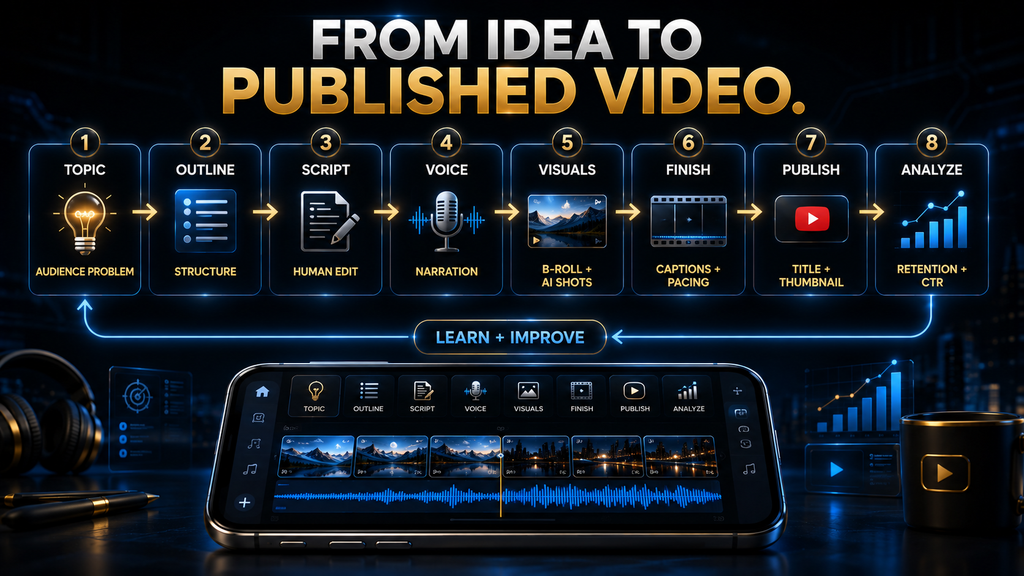
The actual workflow matters more than the individual tools. Here is the production line I recommend.
Step 1: Choose the topic. Do not start inside the video generator. Start with the audience problem. Ask: “What does the viewer want to know, solve or decide?” A tool cannot fix a weak topic.
Step 2: Build the outline. Before generating anything, decide:
- hook;
- promise;
- major sections;
- examples;
- conclusion.
This prevents the AI from creating a visually impressive video that has no logical progression.
Step 3: Edit the script yourself. This is one of the highest-return five minutes you can spend. Remove:
- generic introductions;
- repeated statements;
- unnecessary adjectives;
- vague claims;
- filler transitions.
Strengthen:
- the opening;
- examples;
- specific numbers;
- surprising information;
- the conclusion.
AI should accelerate your script. It should not remove your editorial judgment.
Step 4: Generate the narration. If the built-in voice of your video platform is good enough, use it. If narration becomes a quality bottleneck, move to ElevenLabs. That is a much smarter upgrade path than subscribing to ElevenLabs before you know whether voice quality is actually holding the channel back. Our guide to matching voice tone, pace and pronunciation in AI narration helps you direct the result.
Step 5: Build the visual draft. Use InVideo AI, Fliki, Canva and VEED depending on the format. At this stage, optimize for coverage, not perfection. You need the right visual for the right sentence.
Step 6: Add premium shots only where they matter. This is where Veo can enter. Use it for:
- the opening;
- an important concept;
- a visual transition;
- a memorable moment.
Do not spend premium generation credits creating twenty generic clips that stock footage could have handled.
Step 7: Finish in CapCut. Now inspect the entire video. Ask: Would I keep watching after the first 30 seconds? Then check:
- narration;
- captions;
- pacing;
- music;
- scene changes;
- visual repetition;
- dead air;
- ending.
Step 8: Create the thumbnail. Do not treat the thumbnail as an afterthought. The thumbnail and title determine whether the viewer starts the video. The video itself determines whether they keep watching.
Step 9: Publish and measure. The production process does not end when you press Publish. The next video should be informed by what happened to the previous one. For YouTube, pay particular attention to: If you want to reach other languages later, see how ElevenLabs dubbing works.
- click-through rate;
- first 30-second retention;
- average view duration;
- returning viewers;
- where viewers leave.
If people click but leave quickly, changing your AI video tool is probably not the first solution. Your hook, pacing or expectation-setting may be the real problem. YouTube’s audience retention report shows where viewers drop off.
Which Stack Should You Use?
The answer depends on how much you actually need.
If Your Budget Is $0. Start with: Canva + CapCut Use the free versions to validate:
- niche;
- topic;
- video format;
- narration style;
- publishing consistency.
Do not spend money before you know what you are trying to improve.
- If You Want the Simplest All-in-One Workflow. Start with: Fliki + CapCut Fliki handles a large part of the creation process, while CapCut gives you a dedicated finishing layer.
- If You Want Better Narration. Use: Fliki or InVideo + ElevenLabs + CapCut The dedicated voice layer becomes the upgrade.
- If You Want Premium Visuals. Use: Fliki/InVideo + Veo + CapCut Veo should be the specialist, not the entire factory.
- If You Want AI Presenters. Consider: VEED + CapCut especially if you’re using an iPhone and want an AI actor to become part of the channel format.
- If You Are Completely New. Start with: Canva + CapCut Your first objective is not maximum automation. It is learning the production process.
A Better Way to Think About Your Monthly Budget
Do not ask: “How much do all seven tools cost?” That is the wrong calculation. Ask: “What is the cheapest stack that removes my current bottleneck?” For example:
| Your problem | Upgrade |
|---|---|
| I don’t know how to edit | Canva |
| Creating the first draft takes too long | InVideo AI or Fliki |
| Narration sounds generic | ElevenLabs |
| My visuals look repetitive | Veo |
| My videos feel slow | CapCut |
| I need an AI presenter | VEED |
| I keep switching between apps | Fliki |
This is much more economical. You don’t need seven subscriptions. You need one answer to the bottleneck you actually have.
The Biggest Mistakes to Avoid
Buying every tool before publishing. This is probably the most expensive beginner mistake. A creator subscribes to five platforms before producing five videos. Now they have:
- five monthly bills;
- five interfaces to learn;
- five credit systems;
- five workflows;
- no audience data.
The solution is not more AI. The solution is publishing.
Rebuilding the stack after one bad video. One video performs badly. The creator concludes: “This AI tool is terrible.” That conclusion is usually premature. A video can fail because of:
- weak topic;
- weak title;
- weak thumbnail;
- poor opening;
- bad pacing;
- wrong audience;
- low demand;
- poor retention.
Do not replace your entire production system because one video underperformed.
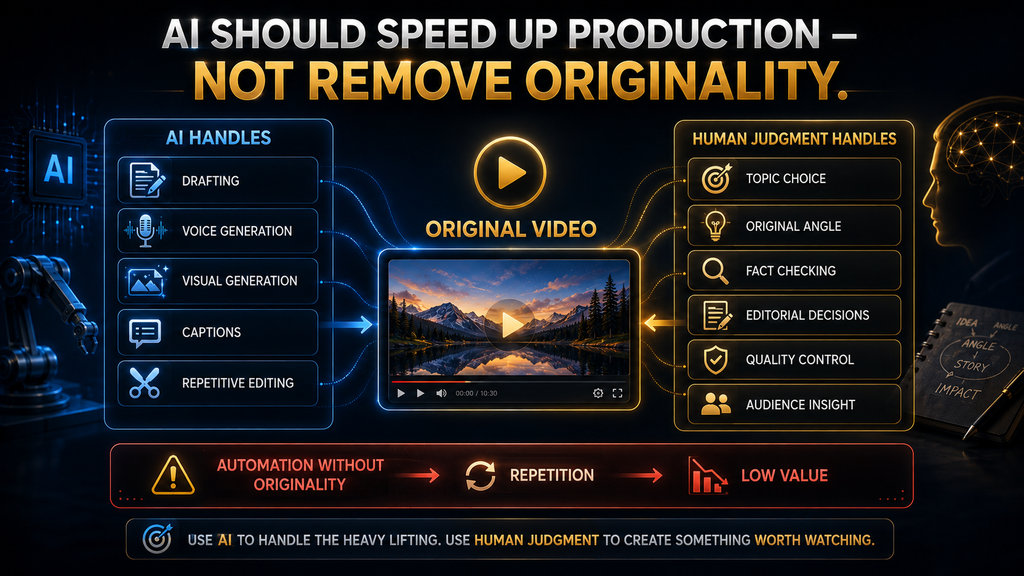
Letting AI write the entire video without editing. AI-generated scripts often sound structurally correct while saying very little. A human should still control:
- the angle;
- the argument;
- examples;
- evidence;
- tone;
- final conclusion.
Generating too many visuals. More AI clips do not automatically create a better video. Sometimes the result is simply visual noise. Every scene should have a job. If the narration says: “This tool costs $20 per month,” you may need a simple pricing graphic. You do not need an elaborate cinematic scene of a futuristic robot holding a credit card.
Making every video look the same. Automation creates consistency. Too much automation creates repetition. That distinction matters for both viewers and monetization.
AI Does Not Automatically Make a YouTube Channel Monetizable
This is one of the most important reality checks in the article. Using AI does not automatically make your channel ineligible for monetization. But mass-produced, repetitive or low-value content creates a real problem. YouTube’s current monetization policies emphasize original and authentic content and specifically address repetitive or mass-produced material under its “inauthentic content” rules. That means: AI should reduce production effort, not reduce the originality of the channel. A channel consisting of hundreds of nearly identical videos built from the same template, generic script structure and interchangeable visuals is much weaker than a channel where AI accelerates genuinely original research, scripting and editorial decisions. Your face does not have to appear. Your judgment does. YouTube’s channel monetization policies explain what counts as inauthentic content.
What About YouTube’s AI Disclosure Rules?
There is another distinction creators need to understand. YouTube requires disclosure when content is meaningfully altered or synthetically generated and appears realistic—for example, making a real person appear to say something they did not say or generating a realistic event that never happened.
But YouTube does not require the same disclosure for many forms of production assistance, such as generating an outline, script, thumbnail, captions, or other minor assistance. The platform also says that cloning your own voice for voiceovers or dubs does not itself require disclosure under the examples listed in its guidance. The practical rule is: If your AI creates realistic synthetic material that could reasonably be mistaken for real, check the disclosure requirement before publishing. Do not assume that “faceless” means “no disclosure.” They are completely different concepts.
Who Should Use Which Tool?
If you want the shortest possible decision guide:
- Choose InVideo AI if. You want the AI to handle a large part of the first video draft.
- Choose Fliki if. You want a mobile-responsive, integrated script-to-video workflow.
- Choose ElevenLabs if. Your narration needs to sound more natural, consistent or distinctive.
- Choose Veo if. You need a few premium AI-generated visual moments.
- Choose CapCut if. You already have footage and need to turn it into a polished video.
- Choose Canva if. You are completely new and want the easiest learning curve.
- Choose VEED if. You want AI actors and mobile-first AI creation, particularly on iPhone.
- The Three-Tool Rule. For most beginners, I recommend starting with three functional roles, not three specific brands.
- Script / Voice. Fliki or ElevenLabs.
- Visuals. Fliki, InVideo, Canva or Veo.
- Finishing. CapCut.
That is enough. Once the channel has data, you can identify which component is limiting you. If narration is weak: upgrade the voice layer. If production is too slow: upgrade the visual engine. If videos feel amateur: improve the finishing layer. If viewers leave immediately: look at the hook before buying another AI tool. That last point will save you more money than another subscription.
Final Thoughts
The biggest mistake you can make with a phone-only faceless YouTube channel is choosing tools before choosing a workflow. The technology is changing too quickly for a permanent “best AI video tool” list to remain accurate forever. Today’s generator can become tomorrow’s outdated platform, while a new model can suddenly make an old workflow inefficient. The durable part is the production system.
- Script and voice.
- Visuals.
- Finishing.
That is why the three-role framework matters more than any individual recommendation in this article. If you’re starting from zero, keep the stack cheap. Canva and CapCut can teach you the fundamentals without forcing you into a collection of subscriptions. If your bottleneck is producing the first complete draft, move toward Fliki or InVideo AI. If narration becomes the weak point, add ElevenLabs. If your visuals are too generic, introduce Veo selectively.
If you need an AI presenter, look at VEED. And if a tool is not solving a real production problem, don’t buy it. The goal is not to build the most advanced AI studio that fits inside your phone. The goal is to build a production system simple enough that you can keep using it long after the excitement around the latest AI video model disappears.
Decide Whether a Separate Voice Tool Is Worth It
Check ElevenLabs’ current plans against how many videos you publish each month before you add another subscription to your stack.
Review ElevenLabs Plans →Affiliate disclosure: We may earn a commission if you subscribe through this link, at no additional cost to you.
Frequently Asked Questions
Can I really run a faceless YouTube channel using only a phone?
Yes, but the level of convenience depends on the tool stack. Fliki, Canva, CapCut and ElevenLabs have strong mobile workflows, while other platforms may split creation, editing or exporting across devices. Pictory, for example, currently requires desktop for detailed editing and final watermark-free export.
What is the cheapest way to start?
Use the free versions of Canva and CapCut first. Your goal should be to validate the channel format before adding paid AI tools.
Do I need ElevenLabs from day one?
No. If your existing narration is acceptable, use it. Add ElevenLabs when narration quality becomes a genuine bottleneck. That is a much better purchasing decision than subscribing simply because it is considered one of the best voice platforms.
Is Veo necessary for a faceless YouTube channel?
No. Veo is a quality upgrade, not a requirement. Use it when a premium visual materially improves the story.
Is CapCut enough to make the final video?
For many creators, yes. It is particularly useful as the final editing layer after AI generation. The important thing is not which editor has the longest feature list; it is whether you can comfortably correct pacing, captions, audio and visual problems from your phone.
Should I use an AI avatar for my first channel?
Usually not. Start with stock footage, graphics or editorial visuals unless the avatar itself is important to your content format. Avatars add another layer of production and can make weak content look more obviously automated.
Will YouTube monetize AI-generated faceless videos?
AI use by itself is not the entire monetization question. YouTube’s policies focus heavily on originality, authenticity and whether content is repetitive or mass-produced. Your safest approach is to use AI as production assistance while keeping human control over research, scripting, editorial decisions, accuracy, visual selection and final quality.
Do I need to disclose AI-generated content?
Sometimes. YouTube requires disclosure for realistic altered or synthetic content that could mislead viewers about real people, places or events. It does not require the same disclosure for every form of AI-assisted production. Check the current YouTube Studio requirements whenever your video contains realistic synthetic material.
How many AI tools should I use?
Start with the minimum viable stack. For most beginners, that means one production tool, one finishing tool and optionally a specialist voice tool. Adding more tools does not automatically increase quality.
Written by
Muntasir Ahmad Chowdhury
Founder, AI Hustle World
Muntasir Ahmad Chowdhury is the Founder of AI Hustle World, an independent publication dedicated to making Artificial Intelligence practical, trustworthy, and easy to understand. He researches AI tools, automation, customer service, productivity, and real-world business applications, helping readers make smarter technology decisions through research-driven, experience-backed content.
Expertise:
AI Tools • AI Automation • AI Customer Service • AI Productivity • Generative AI • AI Workflows
Get Smarter With AI
Enjoyed this guide? Get practical AI tools, tutorials, and honest reviews delivered to your inbox.