Evidence: Documentation reviewed
Last checked: August 2026
What was done: Written from official documentation and the published sources linked in this article. Not hands-on tested.
Files: None
Affiliate links: No
Best AI PDF Tools (Free and Paid): Top 10 Compared
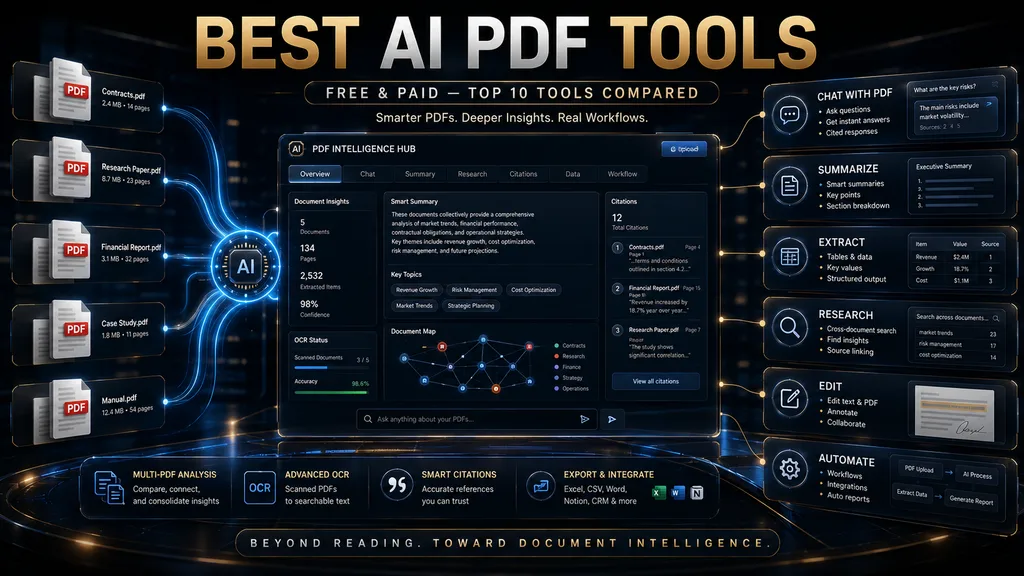
The best AI PDF tool depends on what you need to do with your documents. Adobe Acrobat is the strongest all-round choice when you need serious PDF editing plus AI. Gemini Notebook, formerly NotebookLM, is best for research across many sources. ChatPDF is the simplest way to ask questions about one PDF, and PDFgear is the best free editor with AI built in.
AskYourPDF and Humata are strong choices for document chat and repeated analysis, SciSpace suits academic papers, PDF.ai suits people who want API access, Smallpdf suits everyday tasks such as compressing and converting, and UPDF is a capable Acrobat alternative. All ten have a free option, a free trial or a low-cost entry plan.
PDFs are meant to make documents easy to share, but they often make information hard to use. A 200-page report may hold the number you need, a research paper may hide its key limitation in a methods section and a contract may bury an important obligation in a clause that looks harmless. AI PDF tools turn those static files into something you can question and work with.
Most “best AI PDF tools” lists treat every PDF task as the same, and that leads to poor choices. A student asking five questions about a paper needs a different tool from a business that edits, signs and redacts contracts every day. This guide takes a workflow-first approach, with prices checked on each vendor’s site in October 2026 and a W.O.R.T.H. score for every tool.
Quick Comparison: 10 Best AI PDF Tools
Here is the short version. Prices come from each vendor’s pricing page in October 2026 and change often, sometimes because of temporary promotions, so treat them as a snapshot rather than a guarantee. “Paid from” shows the lowest regular price we found, usually on annual billing. Check the linked pages before you buy.
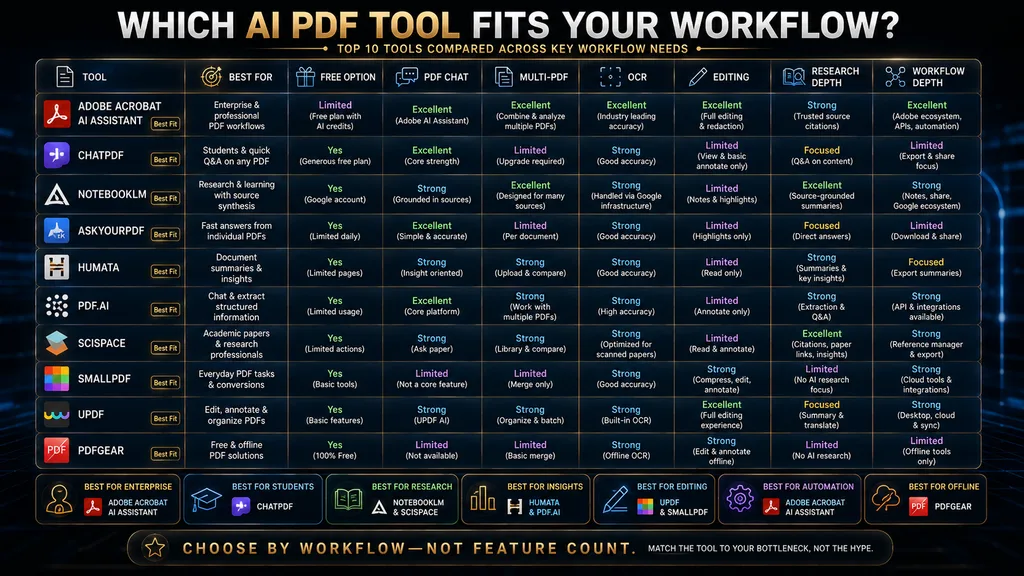
| Tool | Best for | Free option | Paid from | Multi-PDF | Editing |
|---|---|---|---|---|---|
| Adobe Acrobat | Full PDF workflow with AI | Free Reader and online tools | US$14.99/mo (Standard); AI in Studio at US$24.99/mo | Yes (PDF Spaces) | Excellent |
| Gemini Notebook | Research across many sources | Up to 50 sources per notebook | Higher limits in Google AI plans | Excellent | No |
| ChatPDF | Simple PDF questions and answers | Yes | Plus upgrade in app | Limited | No |
| AskYourPDF | PDF chat and knowledge bases | 100 pages per document | $11.99/mo billed yearly | Yes | Limited |
| Humata | Repeated document analysis | 60 pages | $9.99/mo | Yes | No |
| PDF.ai | PDF chat plus developer APIs | 1 PDF, 100 questions | $10/mo billed yearly | Yes (higher plans) | Limited |
| SciSpace | Academic papers | Limited access | $12/mo billed yearly | Yes | No |
| Smallpdf | Everyday PDF operations | Limited downloads | US$12/mo | Limited | Strong |
| UPDF | Acrobat alternative with AI | Trial | US$79.99 lifetime (Pro, promo) | Yes | Excellent |
| PDFgear | Free editing with AI | Free, no sign-up | Free | Limited | Strong |
The table shows why a single “number one” ranking would mislead. Acrobat and UPDF are full editors with AI, Gemini Notebook and SciSpace are research environments, ChatPDF, AskYourPDF, Humata and PDF.ai are document chat tools, and Smallpdf and PDFgear are utility suites that have added AI. Pick the category first, then the tool.
How We Chose and Compared These Tools
We selected widely used tools that publish clear product and pricing information, then reviewed each vendor’s own pricing and feature pages in October 2026. We compared what the free tier includes, how each product meters usage, whether it supports multiple documents, OCR and editing, and how it fits into a real document workflow.
This is a documentation-based comparison, not a hands-on test. We did not run each tool against the same document set or measure accuracy ourselves. Where a feature or price affects our recommendation, we say so and link to the vendor page so you can check the current version yourself before you subscribe.
None of the links in this article are affiliate links, and no vendor paid for placement. Rankings reflect fit for a type of user, not commissions. If your main need is research across many sources rather than PDFs specifically, our comparison of the best AI research assistants covers that category in more depth.
What an AI PDF Tool Does
An AI PDF tool uses artificial intelligence to help you understand, search, extract, transform or work with information in PDF files. The simplest version lets you upload a document and ask questions about it. More advanced tools summarize long documents, read scanned pages with OCR, compare several files, extract data and create new content from what they find.
That makes “AI PDF tool” an umbrella term for several different product types. Some are PDF editors that added AI, some are document chatbots, some are research platforms and some are developer services for processing documents at scale. Choosing well starts with knowing which type matches your work. The sections below cover each type in turn.
Under the hood, most tools follow a similar chain: extract the text, often with OCR for scans, find the passages relevant to your question and ask a language model to answer from those passages. Our guide to retrieval-augmented generation explains this process and why it affects accuracy. Good tools show you which passages they used.
Understanding that chain helps you judge results. If the text extraction is poor or the right passage is not retrieved, even a strong AI model will give a weak or wrong answer. That is why OCR quality, citations and multi-document handling matter as much as the AI model itself. Test those features with your own files.
The PDF Intelligence Ladder
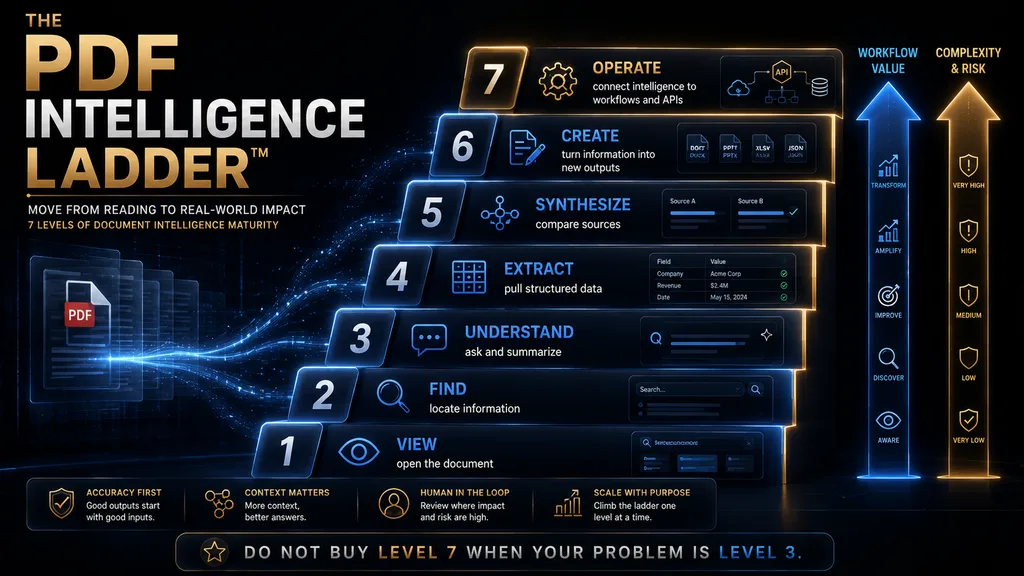
A helpful way to understand this market is to think of PDF work as a ladder with seven levels. This is AI Hustle World’s editorial framework. View means opening and reading. Find means locating a word, number or clause. Understand means asking questions, summarizing and explaining difficult material. Most everyday needs sit on these first three steps.
Extract means pulling structured information, such as dates, amounts or obligations, into a table. Synthesize means comparing several PDFs and connecting information across them. Create means turning document information into reports, study guides or presentations. Operate means connecting PDF intelligence to knowledge bases, APIs and business workflows.
The ladder matters because you should not pay for level seven when your real problem is level three. A student reading one textbook chapter does not need the infrastructure of a company processing thousands of documents. Identify the highest level you need regularly, and choose the simplest tool that reaches it comfortably.
The Three Layers of AI PDF Software
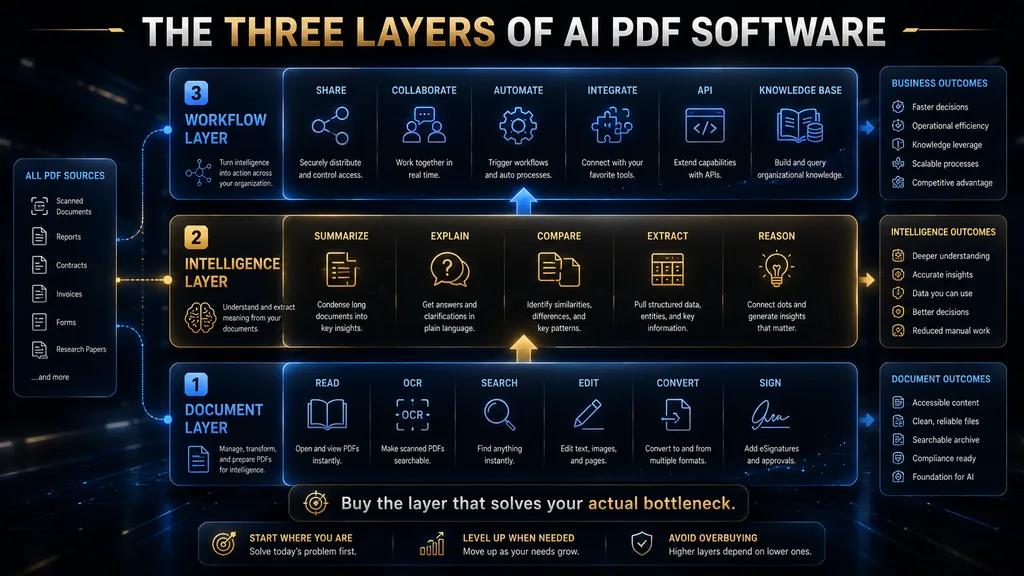
Another useful lens separates products into three layers. The document layer is the traditional PDF world: reading, OCR, searching, editing, converting and signing. The intelligence layer is where generative AI enters: summarizing, explaining, comparing, extracting and reasoning about content. Most tools are strongest in one of these two layers.
The workflow layer is where document AI becomes operational: sharing, collaborating, automating, integrating with other systems, building knowledge bases and using APIs. Some products are excellent at the document layer, some are mainly intelligence tools and a smaller group tries to cover all three layers at once.
Knowing which layer you need saves money. If you mainly edit and sign PDFs, a strong document-layer tool with light AI is enough. If you mainly ask questions of documents, an intelligence-layer tool is a better fit. If documents feed business processes, look for workflow-layer features such as APIs, permissions and integrations.
1. Adobe Acrobat: Best Overall AI PDF Tool
Adobe Acrobat is the strongest all-round option when you need AI combined with a mature PDF workflow. Its advantage is that AI is not a separate chatbot bolted onto a viewer. AI Assistant sits alongside the tools for editing, converting, organizing, protecting, signing and comparing PDFs. That integration is its main advantage over chat-only tools.
Adobe’s page on AI Assistant says it can produce summaries with citations that link to the source in your documents, generate audio overviews and work across files in PDF Spaces. It also says content used with AI Assistant is never used to train Adobe’s AI models and that responses are cited back to the source document.
Adobe’s plans page lists Acrobat Standard at US$14.99 a month and Acrobat Pro at US$19.99 a month on annual plans billed monthly. Acrobat Studio, at US$24.99 a month, includes everything in Pro plus AI Assistant and PDF Spaces. Acrobat Reader remains free for viewing. Standard and Pro do not include AI Assistant, so choose Studio if you want the AI features.
Acrobat shines when you receive a 150-page proposal and need to understand it, edit it, compare versions, redact sensitive parts, collect signatures and send it on, all in one place. Its limitation is cost and complexity: if you only want a summary of a 40-page PDF now and then, you would pay for many features you never use. Verdict: choose Acrobat Studio if you want AI inside a full PDF management system, especially for business documents.
2. Gemini Notebook (formerly NotebookLM): Best for Multi-Source Research
Google’s research tool, previously called NotebookLM, now appears as Gemini Notebook at notebook.google. Calling it a PDF reader undersells it. Its strength is source-grounded research: you add PDFs, documents, websites, videos, audio and Google Docs or Slides to a notebook, then ask questions across all of them.
Google’s help pages say answers are grounded in your sources with clear inline citations. The Gemini Notebook plans page lists up to 50 sources per notebook on the standard free plan, up to 100 on Google AI Plus and up to 300 on Google AI Pro, along with higher usage limits on the paid plans. The free plan is generous enough for most students and individual researchers.
The key difference from a PDF chatbot is scope. ChatPDF answers “what does this document say?” Gemini Notebook answers “what do these documents say together?” For a literature review, competitor analysis or study guide built from many sources, that difference changes the whole workflow and saves hours of switching between files.
Its limitation is that it is not a PDF editor. You cannot rearrange pages, edit text, sign documents or compress files with it. It is a research environment, not an Acrobat replacement, so many people pair it with a free editor such as PDFgear for the document tasks it does not handle. Verdict: choose Gemini Notebook when your problem is research across many documents and you want answers you can trace back to sources.
3. ChatPDF: Best for Simple PDF Questions
ChatPDF takes the opposite approach to Acrobat: simplicity first. You drop in a PDF, ask questions and get answers based on the document. Its site describes it as working like ChatGPT but for PDFs, with free summaries and answers, and it has added tools such as flashcards, an AI writer and chat with videos and websites.
ChatPDF is free to start, with a Plus upgrade offered inside the app for heavier use. We could not find a public pricing page during our October 2026 check, so confirm the current price and limits in your account before upgrading. The free tier is designed for light use, and paid access raises document and question limits.
Its biggest advantage is low friction. You do not need to learn a complex application or configure a workspace. That makes it useful for students reading papers, professionals skimming reports and anyone who occasionally needs to find something in a long PDF without spending time on setup. It also works well on a phone for quick checks.
The simplicity is also its limitation. ChatPDF is not built for editing, signing, heavy OCR work or managing large document collections. Use it to understand documents quickly, then verify important answers against the original text, especially numbers, dates and conditions that a summary might compress. Verdict: choose ChatPDF when you mainly want to talk to PDFs rather than manage them, and you value speed over features.
4. AskYourPDF: Best for PDF Chat and Knowledge Bases
AskYourPDF sits between a simple chatbot and a document platform. AskYourPDF’s pricing page lists a free plan with 100 pages per document, a 15MB upload limit, one document a day and 50 questions a day. That is enough to try the product on real files before paying. Annual billing gives a 25% discount on paid plans.
Premium costs $11.99 a month billed yearly and raises the limit to 2,500 pages per document, 50 documents a day and 1,200 questions a day. It adds chat across multiple documents through a knowledge base, OCR support, a summarization service and a choice of AI models. Pro costs $14.99 a month billed yearly for heavier use.
The knowledge base is the feature that sets AskYourPDF apart. Instead of chatting with one file at a time, you can treat a collection of documents as one connected source. That suits people who want to move from occasional questions to an AI system that understands a whole document library. It also offers a Chrome extension on paid plans.
The limitation is complexity in pricing. Some AI models require credits, and limits vary by plan, so the effective cost depends on which models you use and how much you upload. Check the model and credit details before choosing a plan, especially if you plan to use premium models often. Verdict: choose AskYourPDF when you want PDF chat that can grow into multi-document knowledge management at a moderate price.
5. Humata: Best for Repeated Document Analysis
Humata is built around turning documents into a searchable knowledge layer. Humata’s pricing page lists a free plan with up to 60 pages of use. Expert costs $9.99 a month for up to three people with 500 pages included, and extra pages cost $0.02 each. The free plan suits one person testing the tool. Upgrade when you need more pages or users.
Team costs $49 per user per month for up to 10 people, with 5,000 pages included, extra pages at $0.01 each, and features such as OCR, folder and department permissions and response personalization. Enterprise plans add custom limits, an uptime agreement and a SOC 2 certificate for organizations with stricter security needs.
Humata works well for repeated questioning. You can ask which sections of a 90-page policy discuss data retention, then which exceptions are mentioned, then how those exceptions compare with a second document. That turns a static PDF into a knowledge source you can interrogate step by step. Each answer points back to the relevant section.
The page-based model is the main thing to understand. A $9.99 plan sounds cheap until heavy use exhausts the included pages and overage charges begin. The right comparison is not monthly price but how many pages you process each month, so estimate your volume before choosing a plan. Verdict: choose Humata when you repeatedly analyze document collections and want straightforward page-based pricing with team options.
6. PDF.ai: Best for PDF Chat Plus Developer APIs
PDF.ai combines a consumer document chat product with developer APIs. PDF.ai’s pricing page lists a free Hobby plan with one PDF upload and 100 questions a month. Pro costs $10 a month billed yearly with 100 uploads and 1,000 questions, and Ultimate costs $20 per user per month with unlimited uploads and questions.
Paid plans add AI-powered OCR on more pages per file, larger file sizes, more capable models and chat across all your PDFs on higher tiers. Enterprise costs $30 per user per month billed yearly. The same page also promotes APIs for parsing, extraction and splitting documents inside your own applications.
That API direction is what makes PDF.ai different from simpler chat tools. A developer can build PDF intelligence into a product or internal workflow rather than uploading files by hand. For teams that process documents at scale, that can matter more than any chat interface. Monthly billing costs more than the yearly prices shown here.
Its limitation is that it is not a full PDF editor. If your main requirement is editing, signing and organizing PDFs, Acrobat, UPDF or PDFgear will serve you better. PDF.ai is strongest as a document understanding and processing tool, not a document management suite. Verdict: choose PDF.ai when you want simple document chat today with a clear path to API-based document processing tomorrow.
7. SciSpace: Best for Academic Papers
SciSpace shows why “best AI PDF tool” depends on the job. If you read research papers, you do not need a better editor. You need help finding, reading, understanding, comparing and citing research. SciSpace is built around that workflow, with chat with PDF, literature reviews, citation generation and data extraction.
SciSpace’s pricing page lists Premium at $12 a month billed annually, or $20 on monthly billing, with 1,200 monthly credits, unlimited chat with PDF and unlimited literature reviews. Advanced costs $70 a month billed annually and Max costs $160 a month billed annually for heavier use. The page also offers a short money-back guarantee period.
The important difference is scope. A generic PDF chatbot helps you understand one paper. SciSpace helps when the bigger problem is understanding the research around a topic: which papers matter, what methods they used and where findings agree or conflict. It also searches sources such as Google Scholar, PubMed and arXiv on paid plans.
Its limitation is that it is more than most people need for invoices, business reports or general documents, and the higher tiers are expensive. If you only read the occasional paper, a free tool such as Gemini Notebook may be enough. For heavy academic work, SciSpace’s research features justify the cost. Verdict: choose SciSpace when research papers are the center of your work and you need literature search, citations and synthesis alongside PDF chat.
8. Smallpdf: Best for Everyday PDF Operations
Smallpdf belongs to a different category. It is mainly a PDF utility suite that has added AI, with tools for compressing, converting, merging, splitting, editing and signing. For many people, the daily PDF problem is not understanding a document but getting routine tasks done quickly. Its tools also run in a browser without installing software.
Smallpdf’s pricing page lists a free plan with 30-plus tools, limited downloads and limited access. Pro costs USD 12 a month on yearly billing and includes unlimited access to all tools, OCR, strong compression, unlimited access to AI-powered tools and a Sign.com Premium subscription. Team plans start at USD 10 per seat.
Smallpdf belongs in this comparison because sometimes the question is “how do I get this PDF work done?” rather than “which AI understands my PDF?” If you compress, convert and sign documents every week, Smallpdf’s breadth and simplicity can save more time than a specialized PDF chatbot. Its signing integration is a practical bonus for small teams.
Its limitation is research depth. It is not the strongest option for deep questioning of long documents or multi-document analysis. Pair it with a research tool if you also need that, or choose Acrobat if you want both operations and AI analysis in one subscription. Verdict: choose Smallpdf when everyday PDF operations matter most and AI is a helpful extra rather than the main reason you are buying.
9. UPDF: Best Acrobat Alternative With AI
UPDF is a full PDF editor that has moved strongly into AI. It covers editing, annotation, conversion, OCR, organizing pages and signing, and its AI Assistant can summarize, translate, explain and chat with PDFs. For many users, it offers Acrobat-style control at a lower long-term cost. It runs on Windows, Mac, iOS and Android.
UPDF’s pricing page in October 2026 listed UPDF Pro as a one-time lifetime licence at US$79.99 (discounted from US$99.99) for use on four devices, with the UPDF AI Assistant sold separately as a yearly subscription at US$79 during a promotion. Prices on this page change often with promotions, so check the current offer and renewal terms.
The lifetime licence is UPDF’s main attraction. If you dislike subscriptions and want a capable editor for years, paying once can be cheaper than Acrobat over time. Adding the AI Assistant brings document chat and summaries into the same app, which keeps editing and understanding in one place. Check whether future major versions are included before you buy.
The limitation is pricing complexity. UPDF offers several combinations of Pro, AI, productivity bundles and signature products, monthly and yearly, so make sure you know exactly what you are buying. As with any cloud AI feature, check how documents are processed before uploading confidential files. Verdict: choose UPDF when you want serious PDF editing plus AI and prefer a one-time licence for the editor over a monthly subscription.
10. PDFgear: Best Free AI PDF Editor
PDFgear is the outlier in this comparison because its core product is free. Its site says you can read, edit, convert, merge and sign PDF files across devices completely free and without signing up, with apps for Windows, macOS, iOS and Android plus online tools. Few free tools offer this much without an account.
It also offers AI features, including an AI chat for PDFs and a PDF copilot that can carry out tasks through natural-language commands. For students, freelancers and small businesses on tight budgets, that combination of a capable editor and AI assistance at no cost is unusual and worth trying first. Paid tools add value mainly for heavy or business use.
The trade-off with any free tool is to understand how it is funded and how it handles your files, especially for AI features that may process documents online. Read the privacy information before uploading sensitive documents, and keep confidential files in tools your organization has approved. Verdict: choose PDFgear when you want a broad PDF toolkit with AI and do not want to pay a subscription. It is the best starting point for most budget-conscious users.
W.O.R.T.H. Scores for All 10 Tools
We rate tools with the AI Hustle World W.O.R.T.H. Score: Workflow fit (25), Output quality (25), Risk and rights (15), Total cost (20) and Human effort (15). These scores are editorial assessments based on documentation and published pricing, not lab tests, and they assume a typical professional or student user.
| Tool | Workflow /25 | Output /25 | Risk /15 | Cost /20 | Effort /15 | Total /100 |
|---|---|---|---|---|---|---|
| Adobe Acrobat (Studio) | 24 | 21 | 13 | 13 | 12 | 83 |
| Gemini Notebook | 20 | 22 | 11 | 18 | 12 | 83 |
| AskYourPDF | 19 | 19 | 10 | 16 | 12 | 76 |
| SciSpace | 19 | 21 | 10 | 14 | 12 | 76 |
| PDFgear | 19 | 17 | 9 | 20 | 11 | 76 |
| Humata | 18 | 19 | 11 | 15 | 12 | 75 |
| UPDF | 21 | 18 | 10 | 15 | 11 | 75 |
| Smallpdf | 19 | 16 | 11 | 16 | 12 | 74 |
| PDF.ai | 17 | 18 | 10 | 16 | 11 | 72 |
| ChatPDF | 15 | 17 | 9 | 18 | 12 | 71 |
Acrobat and Gemini Notebook tie at the top for different reasons: Acrobat for workflow completeness and stated privacy commitments, Gemini Notebook for grounded multi-source answers at a free or low price. PDFgear earns a full cost score, while ChatPDF loses points on workflow fit because it does less beyond question and answer.
Use the totals as a starting point. If you need editing, the workflow column matters most. If you handle confidential files, weigh the risk column heavily and read each vendor’s privacy terms. If you are a student, the cost column may decide it, and Gemini Notebook plus PDFgear covers most needs for free.
Free vs Paid: What Are You Paying For?
The biggest mistake when comparing AI PDF tools is looking only at the subscription price. The better question is what each vendor meters. Different tools limit pages, documents, questions, file size, AI credits, models, OCR pages or the number of users, and the right plan depends on which limit you will hit first.
Humata uses page allowances with per-page overage charges. SciSpace uses monthly AI credits. AskYourPDF combines document, question and conversation limits with credits for premium models. PDF.ai limits uploads and questions. Each model rewards a different usage pattern, so a cheap plan can be the expensive choice for the wrong user.
A $10 plan is not necessarily cheaper than a $15 plan. If the $10 plan handles only half your monthly workload, you will either upgrade, pay overage or waste time working around limits. Estimate your monthly pages, documents and questions, then compare plans on cost per useful document rather than headline price.
Free tiers are generous for occasional use. Gemini Notebook, PDFgear, AskYourPDF and Humata all let you do meaningful work without paying. Start free, track how often you hit limits for a month and upgrade only the tool you use most. That approach usually saves money compared with buying several subscriptions up front.
The PDF AI Reliability Chain
AI PDF tools introduce a risk that basic PDF software never had: interpretation risk. The chain runs from the PDF to text extraction or OCR, then retrieval of relevant passages, then AI reasoning, then the answer and finally your decision. Each link can introduce an error that carries through to the end.
If OCR misreads a number, the AI can reason perfectly from the wrong figure. If retrieval misses a key clause, the summary will be incomplete. If a contract says “payment is due within 30 days unless the invoice is disputed” and the AI shortens it to “payment is due within 30 days,” the summary sounds right while changing the meaning.
That is why citations and source traceability matter so much. They let you click from an answer to the exact passage it came from and check it in seconds. Our guide to AI hallucinations explains why fluent answers can still be wrong, even when a tool has the right document in front of it. A citation turns a guess into something you can check.
For important documents, use a simple rule. For low-stakes reading, a good summary may be enough. For high-stakes decisions such as contracts, finance or compliance, verify every key claim against the source, and treat the AI as a fast guide to the document rather than a replacement for reading the relevant parts yourself.
Why Citations Matter
An AI answer is much more useful when you can see where it came from. Adobe says AI Assistant responses are always cited back to the source document. Google says Gemini Notebook answers are grounded in your sources with inline citations. Several chat tools also show the passages they used to answer each question.
Citations change how you work. Instead of re-reading a whole document to check a summary, you jump to the cited passage, confirm it says what the AI claims and move on. That keeps most of the time saving while removing most of the risk of acting on a misread or invented detail. That habit matters most for legal and financial documents.
If a tool does not show sources, ask it to quote the relevant passage and give the page number, then check that the quote exists. Our framework for checking AI information gives a step-by-step method that works with any document tool. Invented quotes are easy to catch this way. Make it a routine step.
OCR: The Feature That Matters for Scanned PDFs
Not every PDF contains selectable text. Many are images of pages, such as scanned contracts, receipts, forms and older reports. For those files, the tool needs OCR, optical character recognition, to turn images into text before AI can work with them. Without OCR, the AI may see nothing at all. You can test this by trying to select text in the file.
OCR quality varies. Clean, high-resolution scans of typed text usually work well. Low-quality scans, handwriting, unusual fonts, stamps and complex tables are harder and produce more errors. Those errors then flow straight into summaries and extracted data, which is why OCR quality is a hidden driver of AI accuracy.
Before choosing a tool, ask what share of your PDFs are scanned. If most are, make OCR a primary buying criterion. Acrobat Pro turns scans into editable PDFs, Smallpdf Pro includes OCR, AskYourPDF Premium adds OCR support, PDF.ai includes OCR on a set number of pages per file and Humata includes OCR on its Team plan.
A quick test helps. Upload a typical scanned document, ask for three specific numbers or dates and check them against the original. If the tool gets them wrong, it will get more wrong at scale. Five minutes of testing can save weeks of working from bad data. Repeat the test whenever you switch tools. Use the same file each time.
Multi-PDF Analysis Is the New Differentiator
One PDF is a document, but twenty PDFs can become a research system. That is where tools such as Gemini Notebook, AskYourPDF’s knowledge bases, Acrobat’s PDF Spaces, Humata and higher PDF.ai plans become more valuable, because they let you ask questions across a whole collection at once. It changes what questions you can ask.
Imagine a procurement team with five supplier proposals, three contracts and two internal policies. The useful question is no longer “summarize this PDF.” It becomes “which supplier has the best payment terms, where do the contracts differ and what risks appear across all of them?” That is a far higher-value task.
For legal and due diligence work, this capability is central. Our guides to AI due diligence on large document sets and AI contract review show how specialized tools handle these workflows with stronger controls. Our guide to AI legal research covers the research side of the same work. Both stress verification by qualified people.
Multi-document answers need even more checking than single-document ones, because the AI may mix up which document said what. Ask for answers that name the source document for each point, and spot-check a few against the originals before relying on the comparison. Confusing sources is one of the most common multi-document errors.
When a General AI Assistant Is Enough
Many buyers overlook a simple option: you may already have the AI you need. ChatGPT, Claude and Gemini can all analyze uploaded PDFs, and they can then help you draft an email, build a presentation, compare information with another source or plan next steps, all in the same conversation. That can save you a separate subscription.
The advantage of a general assistant is breadth. The advantage of a dedicated PDF tool is depth: better document controls, citations, editing, OCR, page navigation and persistent document workspaces. So the key decision is whether you need an AI that can read PDFs or a PDF application that has AI built in.
| Need | Dedicated PDF tool | General AI assistant |
|---|---|---|
| PDF editing and page management | Strong | Weak |
| E-signatures | Strong in suites | Weak |
| OCR for scans | Often strong | Varies |
| Quick document questions | Excellent | Excellent |
| Writing and reasoning beyond the PDF | Limited | Excellent |
| Persistent document workspaces | Strong in some tools | Varies |
Neither option is always better. Use the setup that matches the job. If you only occasionally summarize a PDF and already pay for a general assistant, you may not need another subscription. If PDFs are central to your work, a dedicated tool usually pays for itself in saved time and better control. Many people use both for different tasks.
How to Choose the Right AI PDF Tool
Five questions narrow the choice quickly. Do you mainly read or edit? To understand documents, look at ChatPDF, Humata, AskYourPDF and Gemini Notebook. To modify documents, look at Acrobat, UPDF, Smallpdf and PDFgear. Many people need one of each. A free editor plus a research tool covers most needs. Start with that pair.
Do you work with one PDF or many? For one or a few at a time, ChatPDF, Humata or AskYourPDF work well. For many at once, Gemini Notebook, AskYourPDF knowledge bases or Acrobat PDF Spaces are better choices. Are your documents academic? If so, SciSpace’s literature tools become much more relevant than generic chat.
Are your PDFs sensitive? If they include contracts, medical records, financial statements or personal data, do not choose on convenience alone. Check where files are processed, whether they are used for training, how long they are kept and who can access them. Our guides to AI privacy risks and AI data retention explain what to look for.
How much volume do you process? If you read two PDFs a month, a free tool is probably enough. If you process two hundred, page limits, credits, OCR allowances, storage and automation become much more important than the headline price, and a business plan with clear limits may be the cheaper option overall.
A Practical AI PDF Workflow
Instead of uploading a document and asking “summarize this,” use a more reliable sequence. Step 1: decide what you need from the PDF, for example a decision, a list of obligations or the main findings. A clear purpose leads to more useful answers and makes it easier to spot what is missing. Write the purpose down before you upload.
Step 2: ask for structure first: the document’s purpose, main sections, key findings, important numbers and stated limitations. Step 3: ask targeted questions such as “what are the three most important findings, and which pages support each one?” Specific questions produce specific, checkable answers. Page references make checking fast.
Step 4: challenge the answer by asking what the summary might have missed or which exceptions apply. Step 5: verify important claims by clicking the citations or finding the original passages. Step 6: extract actionable details such as deadlines, owners and amounts into a list or table you can use. A table is easier to check and share.
Step 7: only then create downstream content, such as an email, a briefing or a slide deck, from the verified information. This sequence is the difference between an AI-generated summary and an AI-assisted document workflow, and it takes only a few extra minutes for important documents. The extra minutes are cheap insurance.
Summarize this document in five sections: purpose, key findings,
important numbers, decisions or obligations, and limitations.
For every important factual claim, give the page or section where it appears.
Do not infer anything the document does not state. If something is unclear, say so.
CONTRACTS: Extract obligations, deadlines, payment terms, termination conditions,
exceptions and unusual clauses. Reference the section for each item.
Do not give legal advice or assume an ambiguous clause has a definite meaning.
Prompts like these work in most PDF tools and general assistants. Our beginner’s guide to writing AI prompts explains how to adapt them, and our guide to extracting contract obligations with AI goes deeper on legal documents. For very long files, our guide to compressing long documents for AI shows how to keep the key context.
Common Mistakes When Choosing AI PDF Software
Choosing the Tool With the Most Features
More features do not mean more value. If you mainly need document questions answered, an enterprise PDF suite can make your workflow slower and more expensive. Match the tool to the level of the PDF Intelligence Ladder you use most often, not the highest level you might someday need. Simpler tools are often faster to use every day.
Ignoring Document Type and OCR
A text-based research paper and a scanned contract are different technical problems. If your documents are scans, OCR quality decides whether AI can use them at all. Test a few typical files before you commit to any tool or plan. Typical files tell you far more than marketing pages. Use your own files.
Ignoring Citations and Usage Limits
An attractive summary is not enough for high-stakes analysis; you need to see sources. And a cheap plan becomes expensive if your volume exceeds its pages, credits or questions. Check both before subscribing, and estimate your monthly usage honestly. Usage limits are easy to underestimate in the first month.
Uploading Sensitive Files Without Checking Policy
Convenience should never replace data governance. Read the vendor’s privacy and retention terms, check whether AI processing happens in the cloud and use tools your organization has approved for confidential material. A few minutes of checking can prevent a serious problem. When in doubt, ask your IT or compliance team first.
Trusting Tables and Charts Blindly
Tables, charts, footnotes, multi-column layouts and headers are harder for AI to interpret than ordinary paragraphs. Check numbers extracted from tables especially carefully, and compare them with the original layout before you put them in a report or spreadsheet. Numbers in charts are especially easy to misread.
Who Should Use AI PDF Tools
Students and Researchers
If you are a student or researcher, start with Gemini Notebook for research across sources and PDFgear for free editing. Add SciSpace if academic papers are central to your work. Our list of free AI tools for students includes other tools that pair well with these. Together they cover reading, research and editing at little or no cost.
Professionals and Small Businesses
If you handle reports, proposals and contracts, consider Acrobat Studio for an all-in-one workflow or UPDF for a lower long-term cost. Add a document chat tool such as Humata or AskYourPDF if you analyze large collections. Smallpdf suits teams whose main need is everyday PDF operations. For slides built from documents, see our comparison of AI presentation makers.
Legal, Finance and Compliance Teams
If you work in law, finance or compliance, use AI to find and organize information quickly, but keep qualified people responsible for interpretation. Prefer tools with citations, permissions and clear data policies. Our roundup of the best AI legal tools covers specialized options with stronger controls.
Who Should Not Rely on AI PDF Tools Without Review
AI PDF tools should never be the final authority for legal conclusions, medical decisions, financial commitments, compliance determinations or anything where a misread clause has serious consequences. The more consequential the decision, the stronger the verification should be. A qualified person should own the final call.
A simple rule keeps the balance right. For low-consequence reading, AI can summarize. For medium-consequence work, AI summarizes and a person verifies key points. For high-consequence work, a person interprets the document and AI assists with finding and organizing information. Agree on these levels as a team.
That approach keeps most of the productivity gain without pretending document AI is infallible. It also builds trust inside a team, because everyone knows which outputs have been checked and which are first drafts, and who is responsible for each decision. Clear responsibility prevents unpleasant surprises.
The Future of AI PDF Tools
The market is moving from “chat with a PDF” toward “work with everything inside the PDF.” The next stage is a chain from document to evidence, understanding, decision and action. Acrobat’s PDF Spaces, AskYourPDF’s knowledge bases and PDF.ai’s parsing APIs all point in this direction. Expect more of these features over the next year.
Research tools are moving the same way. Gemini Notebook and SciSpace already let you build structured outputs such as study guides, audio overviews and literature reviews from many sources. Agent-style features that take actions based on document contents are starting to appear, which raises the stakes for accuracy and permissions.
So the key question is shifting from “can AI read my PDF?” to “what can I reliably do with the information once AI understands it?” The tools that win will combine accurate extraction, clear citations, strong privacy controls and smooth handoffs into the rest of your work. That is the standard to judge new tools against.
How We Researched This Guide
This guide is based on vendor documentation and pricing pages, not hands-on testing. In October 2026 we reviewed the plans, pricing and feature pages for Adobe Acrobat and AI Assistant, Gemini Notebook, ChatPDF, AskYourPDF, Humata, PDF.ai, SciSpace, Smallpdf, UPDF and PDFgear. We also checked how each one meters usage on its free and paid plans.
Prices and limits are as shown on those pages at the time of checking. Some, especially UPDF’s, reflected temporary promotions, and all may change or differ by region. ChatPDF did not show a public pricing page during our check. The PDF Intelligence Ladder, the three layers and the W.O.R.T.H. scores are AI Hustle World’s editorial frameworks and assessments.
Final Thoughts
There is no single AI PDF tool that wins every workflow. Adobe Acrobat is the strongest all-round option when editing, signing, protection and AI need to live together. Gemini Notebook is the better choice when your real problem is research across many documents, and PDFgear is the best free starting point.
ChatPDF suits simple questions about one document. AskYourPDF and Humata suit repeated analysis and knowledge bases. SciSpace suits academic research. UPDF and Smallpdf suit editing and everyday operations, and PDF.ai suits teams that want document processing through APIs. For multilingual documents, our list of AI translation tools may also help.
Choose the tool that matches the level of PDF intelligence your work requires, not the one with the most features. Start simple, verify important answers against the source and upgrade only when you consistently hit a limit. For research across many sources beyond PDFs, see our comparison of the best AI research assistants.
Turn Your PDFs Into a Smarter Workflow
When you need answers across many documents, compare the AI research assistants built for that job.
Compare AI Research Assistants →Frequently Asked Questions
What is the best AI PDF tool?
Adobe Acrobat is the strongest all-round option if you need editing, signing and AI together. Gemini Notebook is better for research across many documents, and ChatPDF is simplest for quick questions.
What is the best free AI PDF tool?
PDFgear is the strongest free editor with AI features and needs no sign-up. For free research across many sources, Gemini Notebook supports up to 50 sources per notebook.
What happened to NotebookLM?
Google’s NotebookLM now appears as Gemini Notebook at notebook.google, and its help pages have moved too. It still offers grounded answers with citations across your uploaded sources.
Can AI summarize a PDF accurately?
Usually, for clear text documents. Accuracy drops with poor scans, complex tables and long conditional clauses. Use tools with citations and check key facts against the original.
Can AI read scanned PDFs?
Yes, if the tool supports OCR. Acrobat Pro, Smallpdf Pro, AskYourPDF Premium, PDF.ai and Humata’s Team plan all include OCR, with limits that vary by plan.
Which AI PDF tool is best for research papers?
SciSpace is built for academic work, with literature search, citations and reviews. Gemini Notebook is a strong free option for comparing many papers at once.
Which tool is best for many PDFs at once?
Gemini Notebook is strongest for multi-source research. AskYourPDF knowledge bases, Acrobat PDF Spaces, Humata and higher PDF.ai plans also support multi-document work.
Is Adobe Acrobat’s AI worth paying for?
It is worth it if you need AI plus full PDF editing, signing and protection. If you only ask questions about PDFs, a cheaper chat tool or a free option may be better value.
Should I upload confidential PDFs to AI tools?
Only after checking the vendor’s privacy, retention and training policies, and only in tools approved for that data. Remove personal details you do not need first.
Can AI PDF tools make mistakes?
Yes. They can misread text, tables, numbers and conditions, especially in scans. Verify important claims against the original, particularly for legal, financial or medical decisions.
Related Guides
- Best Free AI Tools for Students in 2026: 10 Tools to Study Smarter
- Best AI Writing Tools in 2026: Free & Paid Picks
- Best AI Translation Tools (Free & Paid): Top 10 Tools Compared
- 10 Best AI Presentation Makers in 2026: Free & Paid Compared
Written by
Muntasir Ahmad Chowdhury
Founder, AI Hustle World
Muntasir Ahmad Chowdhury is the Founder of AI Hustle World, an independent publication dedicated to making Artificial Intelligence practical, trustworthy, and easy to understand. He researches AI tools, automation, customer service, productivity, and real-world business applications, helping readers make smarter technology decisions through research-driven, experience-backed content.
Expertise:
AI Tools • AI Automation • AI Customer Service • AI Productivity • Generative AI • AI Workflows
Get Smarter With AI
Enjoyed this guide? Get practical AI tools, tutorials, and honest reviews delivered to your inbox.